A disabled iPhone can stop your whole day fast. Your work messages, bank alerts, school apps, contacts, and photos may all be sitting behind a screen that says “iPhone Unavailable,” “Security Lockout,” or asks you to connect to a computer. If you need to restore a disabled iPhone, the hard truth is that removing a forgotten passcode usually requires erasing the device.
That does not always mean your data is gone forever. If you have an iCloud backup, a computer backup, or your information is syncing to iCloud, you may be able to get most of it back after the restore. The key is to stop guessing passcodes and use the right recovery method.
Why an iPhone becomes disabled
An iPhone disables itself after too many incorrect passcode attempts. This is a security feature, not a hardware failure. The wait time gets longer as more wrong codes are entered. Eventually, the phone may show a Security Lockout screen with no option to try again.
This can happen when a child repeatedly taps the screen, a pocket makes accidental attempts, Face ID fails after a restart, or someone simply forgets an old passcode. Whatever caused it, entering more random codes will not help. It can only extend the lockout.
If you know the passcode and the screen gives you a timer, wait until that timer ends. Enter the code carefully once you are sure. If you do not know the code, plan on erasing and restoring the phone instead.
Before you restore a disabled iPhone
Take a minute to check a few things before starting. You will need the Apple Account email and password previously used on the phone. You should also know whether the phone has a recent iCloud or computer backup. After an erase, Apple’s Activation Lock will require the original account credentials before the phone can be used again.
Do not start a restore if you are unsure whether the phone belongs to you, was purchased used, or is tied to someone else’s Apple Account. A repair shop can help diagnose a device, but no legitimate technician can remove Activation Lock or bypass a passcode without the owner’s account information.
If the iPhone has important business files, family photos, or notes that are not backed up, understand the trade-off before proceeding. A passcode-protected iPhone is designed to protect that data. There is no safe software trick that can retrieve it without the passcode.
Option 1: Erase the iPhone from the lock screen
Some iPhones with newer iOS versions show a “Forgot Passcode?” option in the lower corner of the lock screen after enough failed attempts. This can be the quickest way to erase the phone without connecting it to a computer.
Tap that option and follow the prompts to reset or erase the iPhone. You will need the Apple Account password associated with the device. The phone also needs a working internet connection, usually Wi-Fi or cellular service, for the process to complete.
After the erase, set up the phone again. During setup, choose to restore from an iCloud backup if one is available. Your apps, photos, contacts, messages, and settings may return depending on what was included in the backup and how recently it ran.
This method is convenient, but it will not appear on every disabled iPhone. If you do not see it, use Find My or Recovery Mode.
Option 2: Erase it with Find My
If Find My was turned on before the iPhone was disabled, you can erase it remotely from another Apple device or a web browser. This is especially useful when you do not have access to a computer with Finder, Apple Devices, or iTunes.
Sign in with the same Apple Account used on the disabled iPhone. Select the correct device, then choose the erase option. If the iPhone is online, the erase begins right away. If it is offline, the command waits until it connects to the internet.
Once the erase is complete, turn on the iPhone and complete setup. You will still need the Apple Account password to remove Activation Lock. Then you can restore from an iCloud backup, if one exists.
Find My is also the better choice if your disabled iPhone is lost or stolen. Do not erase it just to clear the lock screen if you are still trying to locate it. Keep it in Lost Mode until you know where it is.
Option 3: Use Recovery Mode with a computer
Recovery Mode is the standard solution when the lock-screen reset option is unavailable and Find My cannot be used. You need a Mac with Finder or a Windows computer with the Apple Devices app or iTunes installed. Make sure the computer has a stable internet connection because it may need to download the latest iPhone software.
First, turn off the iPhone if possible. Connect it to the computer with a good charging cable. Then put the phone into Recovery Mode using the button sequence that matches your model.
For an iPhone 8, iPhone SE second generation or later, or any newer model, quickly press and release Volume Up, quickly press and release Volume Down, then hold the Side button. Keep holding until you see the recovery screen with a cable pointing toward a computer.
For an iPhone 7 or 7 Plus, hold the Side button and Volume Down button together until the recovery screen appears. For an iPhone 6s, original iPhone SE, or older model, hold the Home button and Side or Top button together.
Your computer should detect an iPhone in Recovery Mode and offer options to Update or Restore. Choose Restore for a forgotten passcode or disabled iPhone. Update may reinstall iOS, but it does not remove the passcode.
The restore downloads software, erases the phone, and installs a fresh copy of iOS. Leave the cable connected until the process finishes. If the download takes more than about 15 minutes and the iPhone exits Recovery Mode, repeat the button sequence and try again.
What happens to your data after the restore
A full restore removes the passcode and wipes the iPhone’s local data. That includes photos stored only on the phone, text messages not synced to iCloud, downloaded files, app data, and settings that were never backed up.
After setup, sign in to your Apple Account and look for the option to restore from iCloud backup. If you backed up to a Mac or PC, connect to that same computer and select the backup during setup. If you use iCloud Photos, iCloud Contacts, iCloud Drive, or Messages in iCloud, those items may begin syncing back after you sign in, even if they were not part of a full backup.
Do not expect everything to reappear instantly. Large photo libraries and app downloads can take hours, especially on slower Wi-Fi. Keep the phone charging and connected to Wi-Fi while it finishes.
When a disabled iPhone needs hands-on help
Sometimes the passcode problem is only part of the issue. A damaged charging port can prevent a stable computer connection. Bad cables can cause repeated restore errors. A broken Side button, Home button, or volume button can make Recovery Mode difficult. Water damage, battery failure, and storage problems can also interrupt the process.
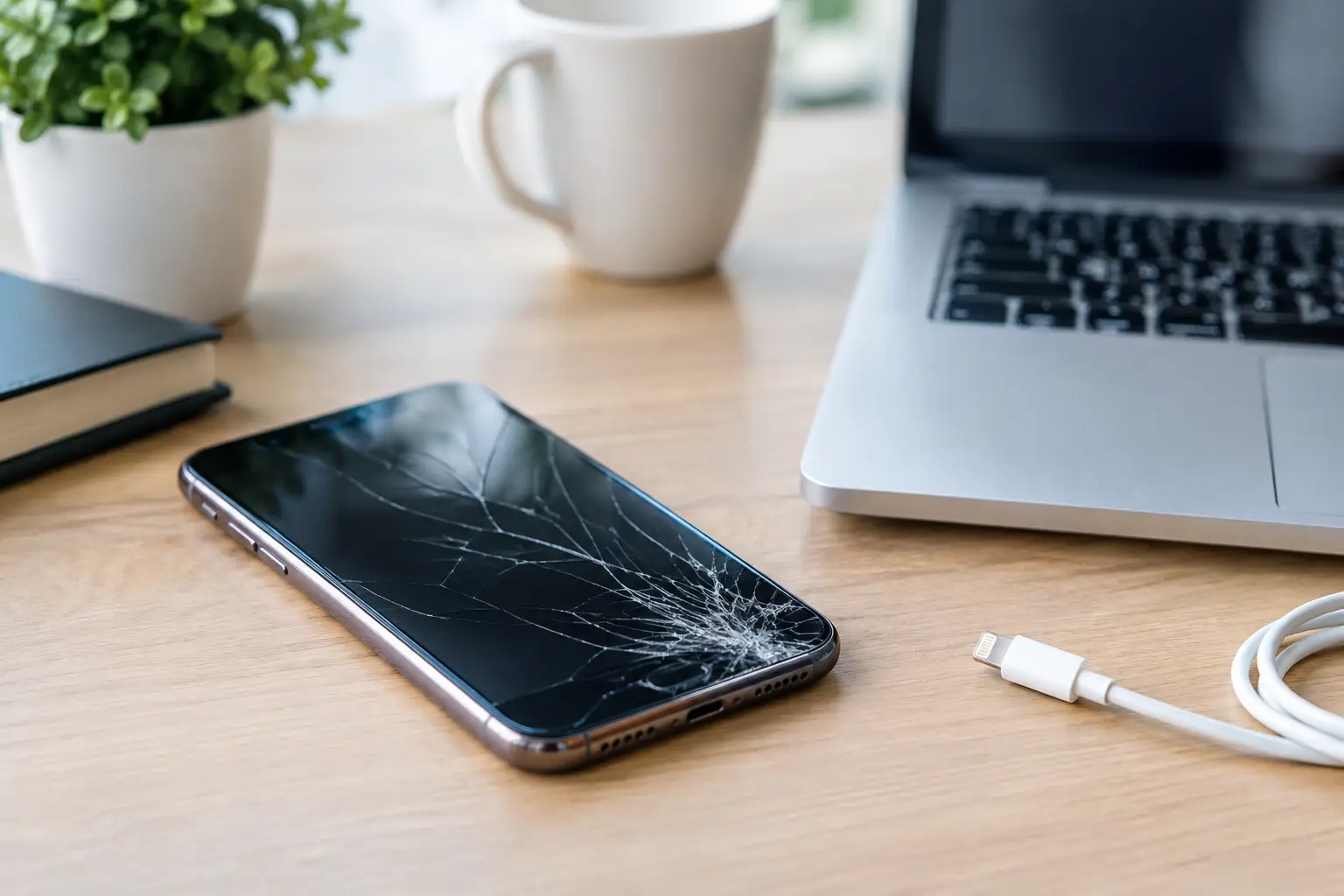
If the restore will not start, the phone keeps disconnecting, or it gets stuck on the Apple logo, hands-on troubleshooting can save time. Bring the iPhone, its charging cable if you have it, and your Apple Account information. If the device has a cracked screen or power problem, mention that up front because it may affect the best repair path.
For Richmond customers, Excell Wireless VA can inspect the device, check for hardware issues that may be blocking recovery, and help you understand the next practical step. A disabled screen is stressful, but the right move is simple: protect your account information, avoid more passcode guesses, and restore only when you are ready for the data trade-off.
Leave a Reply