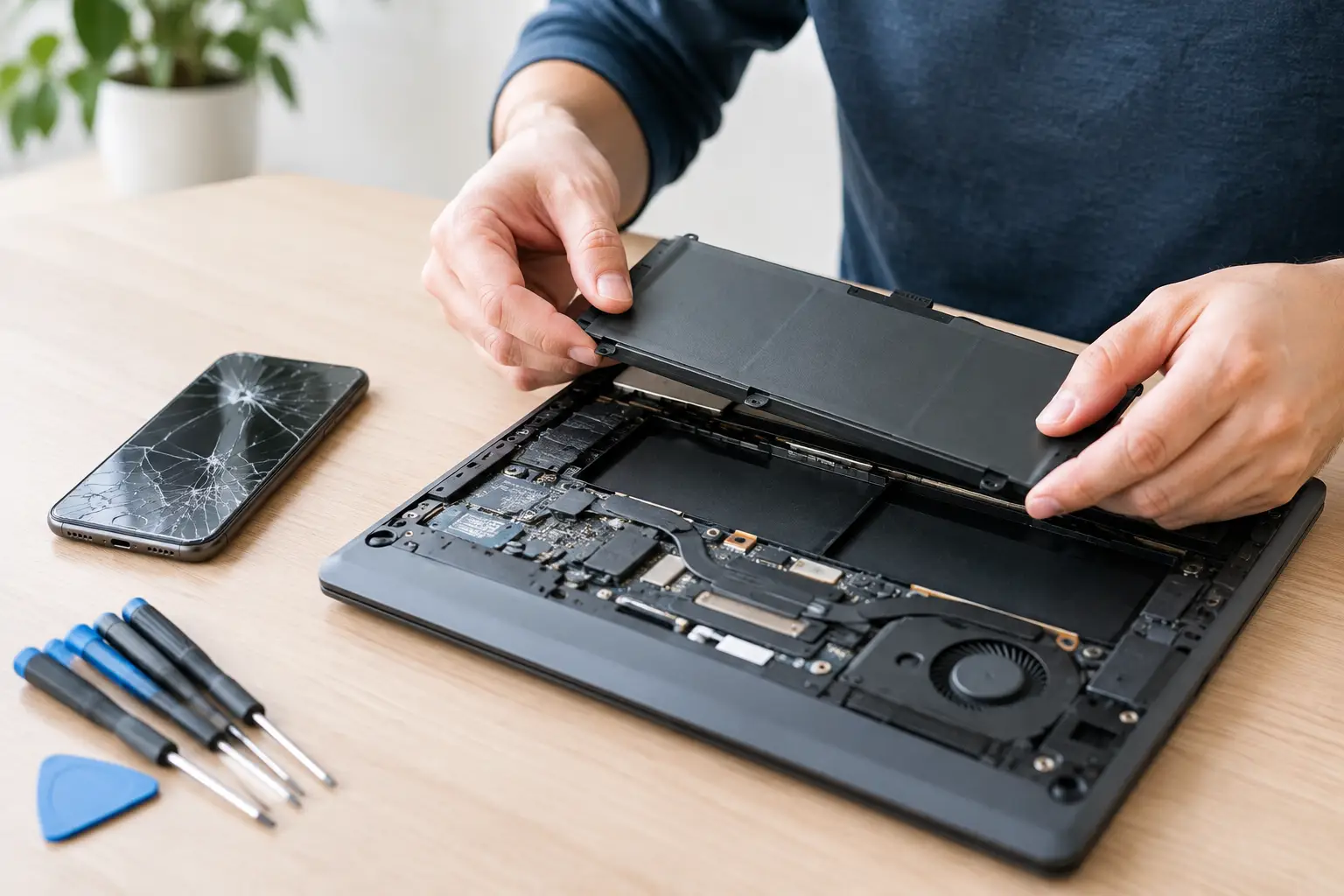
A laptop that drops from 60% to 5%, shuts off without warning, or only works while plugged in can stop your day fast. If you searched for how to replace laptop battery, the good news is that many batteries can be replaced. The catch is that modern laptop batteries are often internal, tightly fitted, and connected with delicate cables. A careful repair starts with confirming the battery is actually the problem.
Confirm the Battery Needs Replacement
A weak battery is common, but it is not the only reason a laptop will not hold a charge. A worn charging cable, damaged charging port, failing power adapter, or software issue can cause similar symptoms. Before opening the laptop, test it with a known-good compatible charger if possible.
On a Windows laptop, you can run a battery report by opening Command Prompt and typing `powercfg /batteryreport`. The report compares the battery’s original design capacity with its current full charge capacity. If the current capacity is much lower than the design capacity, replacement is likely a reasonable next step. Many Mac laptops also show battery condition in the battery settings or system information.
Look for the everyday signs, too. A battery that drains unusually fast, will not charge past a certain percentage, causes random shutdowns, or gets noticeably hot may be near the end of its life. If the case is separating, the trackpad is lifting, or the bottom cover looks bowed, stop using the laptop. Those can be signs of a swollen battery.
Get the Right Replacement Battery
Do not order a battery based only on the laptop brand or screen size. Two laptops that look nearly identical can use completely different battery connectors, voltages, shapes, and mounting points. Check the full model number on the bottom of the laptop, then confirm the battery part number after opening the cover if you can do so safely.
The replacement battery should match the original battery’s voltage and connector type. Capacity may vary slightly, but the physical fit and electrical specifications must be compatible. Very cheap batteries can be tempting, especially when an older laptop is not worth a major repair bill. The trade-off is that low-quality batteries may have shorter life, inaccurate charge readings, or poor safety controls.
If your laptop is still under warranty, check the warranty terms before taking it apart. Opening some models can complicate manufacturer service, even when the battery is the clear problem.
Tools and Preparation for Laptop Battery Replacement
Set aside enough time to work without rushing. A clean table with good lighting is better than a bed, couch, or crowded kitchen counter. Back up important files first. Replacing a battery should not erase data, but accidents happen, and a backup protects you if another issue appears during the repair.
You will usually need these items:
- A precision screwdriver set with the correct Phillips, Torx, or pentalobe bit
- A plastic opening tool or guitar pick for separating the bottom cover
- A small container or magnetic mat to keep screws organized
- The correct replacement battery for your exact laptop model
Shut the laptop down completely. Do not simply close the lid or leave it in sleep mode. Unplug the charger, remove USB devices, and hold the power button for about 10 to 15 seconds after shutdown to drain leftover power. If your laptop has a removable external battery, slide the battery latches and remove it before doing anything else. That is the easy version of this job.
How to Replace a Laptop Battery Step by Step
Remove the Bottom Cover Carefully
Turn the laptop upside down on a soft, flat surface. Remove every visible bottom-cover screw. Some laptops hide screws under rubber feet, labels, or small trim pieces, so inspect the case before prying.
Keep track of where each screw came from. A screw that is only slightly longer can damage the keyboard, motherboard, or screen assembly if installed in the wrong location. Once the screws are out, use a plastic tool around the seam of the bottom cover. Work slowly and release the clips one at a time. Do not use a metal screwdriver to force the cover open because it can crack the plastic or damage internal components.
Disconnect the Battery Before Touching Anything Else
After removing the cover, locate the battery. It is usually a large flat black pack that takes up much of the lower half of the laptop. Before removing its screws, disconnect the battery cable from the motherboard.
Most connectors slide horizontally out of their socket, not upward. Pulling in the wrong direction can tear the connector off the board. Use a plastic tool and apply gentle, even pressure. If there is tape covering the connector, peel it back carefully and save it for reassembly.
Avoid touching other components while the battery is connected. The main goal is simple: remove power from the motherboard before you work around it.
Remove the Old Battery
Take out the screws holding the battery in place. Some batteries have pull tabs or adhesive strips, while others are secured only by screws. Lift the battery from the edges and keep it flat.
If the battery is glued down, do not bend, puncture, or pry aggressively against the battery cells. Lithium-ion batteries can catch fire if damaged. A battery that will not come out easily may require specific adhesive removal techniques for that laptop model. This is a good point to stop and bring the device to a repair shop rather than turning a battery replacement into a safety problem.
Install the New Battery
Place the new battery in the same position as the old one. Reinstall its mounting screws without overtightening them. Reconnect the battery cable firmly, making sure it is seated straight and fully in place. Reapply any protective tape that was originally covering the connection.
Before closing the laptop, take a quick look around. Make sure no cable is trapped under the battery, no screws are left inside, and the battery connector is secure. Then align the bottom cover, press around the edges until the clips snap into place, and reinstall the screws in their original locations.
Test Charging and Battery Performance
Turn the laptop over, connect the charger, and power it on. Let the new battery charge for a while before judging its performance. Check whether the operating system recognizes the battery and whether the charge percentage rises normally.
For the first few days, use the laptop normally and watch for unexpected shutdowns, overheating, or a battery percentage that jumps around. You do not need to fully drain a modern lithium-ion battery on a regular basis. In fact, frequent deep discharges can add wear. A full initial charge and normal use are usually enough for the system to learn the new battery’s behavior.
When a DIY Battery Replacement Is Not the Right Move
Some laptop batteries are easy to access. Others require removing the keyboard, speakers, cooling system, or motherboard before you can reach the battery. Thin laptops, gaming laptops, and certain premium models often have more complicated layouts.
Stop the repair if the battery is swollen, punctured, leaking, or hot. Also get help if you find corrosion, a damaged charging port, stripped screws, or a connector that will not release with gentle pressure. If the laptop still will not charge after a battery replacement, the real issue may be the charger, DC jack, charging circuit, or motherboard.
For Richmond-area customers, Excell Wireless VA can inspect the device and help determine whether the battery is the problem before you spend money on the wrong part. That is especially useful when a laptop has power issues but no obvious battery failure.
A Quick Question About Battery Life
How long should a replacement laptop battery last?
It depends on the battery quality, laptop model, heat exposure, and charging habits. Many replacement batteries provide two to five years of usable life, though heavy use and high temperatures can shorten that range.
Can you use a laptop while it is charging?
Yes. Modern laptops are designed for normal use while charging. Keeping the laptop cool and using a compatible charger matters more than trying to manage every charge cycle perfectly.
What should you do with the old battery?
Do not put it in household trash. Lithium-ion batteries should be taken to an approved electronics or battery recycling location. If it is swollen, store it away from heat and flammable materials until it can be handled safely.
A new battery can give an otherwise reliable laptop a second life, but careful work matters more than speed. If anything feels forced, unclear, or unsafe, pause there. Getting the right diagnosis and the right part is always cheaper than repairing damage caused by one bad step.
Leave a Reply