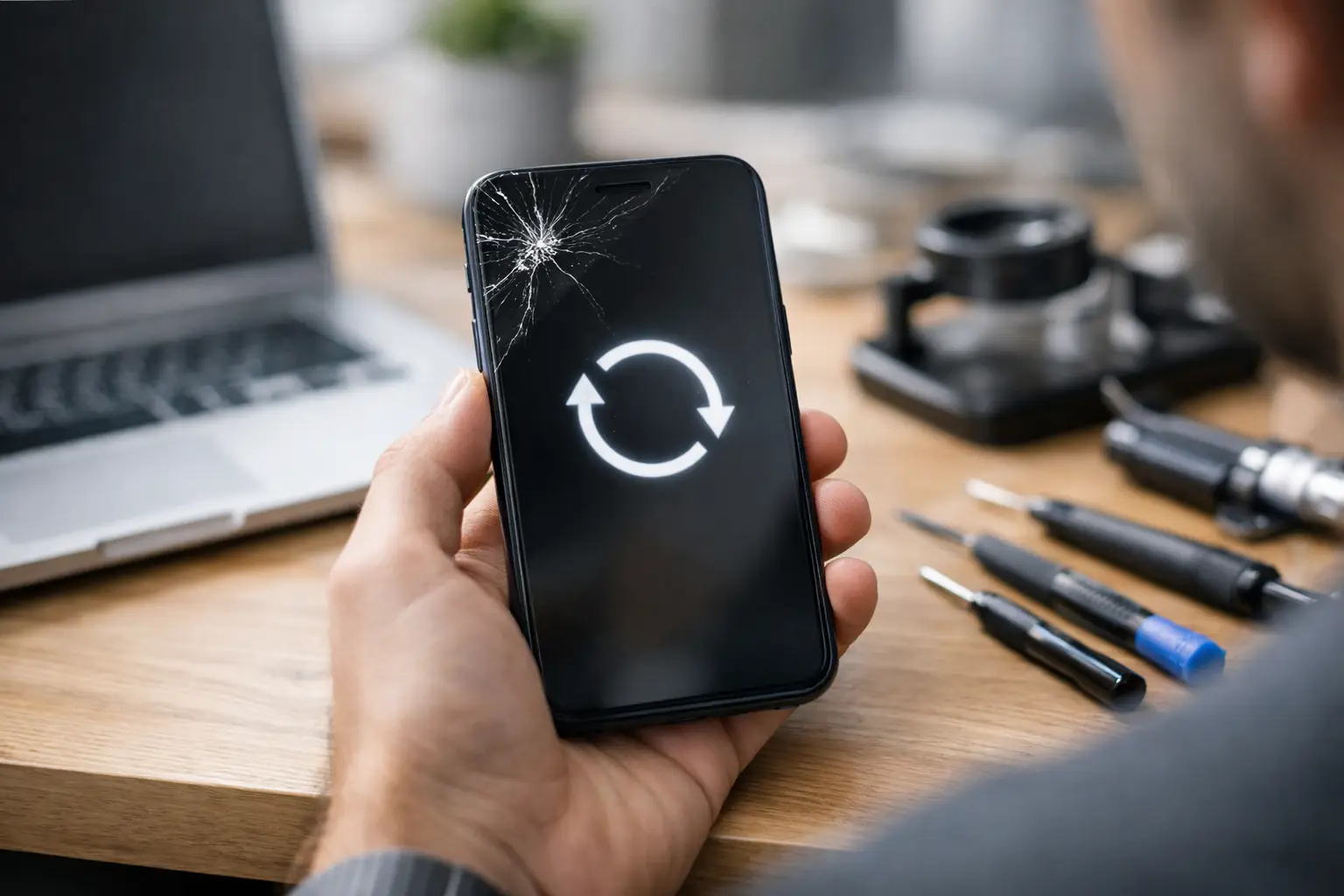
Your phone shows the logo, starts to load, then shuts down and repeats. Calls, messages, banking apps, photos, and work access are suddenly out of reach. If you need to resolve phone boot loop trouble, start with the safest checks first. A boot loop can come from a bad update, low battery power, damaged hardware, storage trouble, or a failing part inside the phone.
The goal is not to keep pressing buttons until something changes. The goal is to avoid making the problem worse or erasing data before you know what caused it.
What a phone boot loop usually means
A boot loop happens when a phone cannot complete its startup process. It powers on, reaches the manufacturer logo or loading screen, then restarts before the home screen appears. Some phones loop every few seconds. Others may stay on the logo for several minutes before restarting.
Software is often the first suspect, especially if the problem began after an update, a new app, a storage warning, or the phone unexpectedly shut off. But hardware can cause the same behavior. A weak battery may not provide enough power during startup. Water exposure, a hard drop, a damaged charging port, or a failing power button can also keep a phone from booting normally.
That difference matters. Reinstalling software will not fix a loose battery connection or a damaged charging circuit. Replacing a battery will not fix corrupted system files. A proper diagnosis saves time, money, and possible data loss.
Safe first steps to resolve phone boot loop issues
Before attempting a reset, remove the phone case and unplug accessories. Take out the charging cable, headphones, USB adapters, and removable storage cards if your phone has one. A damaged cable, faulty accessory, or stuck side button can interfere with startup.
Next, connect the phone to a known-good wall charger using a cable you trust. Let it charge for at least 30 minutes without repeatedly trying to turn it on. A phone that was deeply drained can act like it is in a boot loop when the battery cannot hold enough charge to finish starting up.
After charging, perform one force restart. The button combination depends on the model. On many newer iPhones, this involves quickly pressing the volume buttons in sequence and then holding the side button. Many Android phones use the power button and volume down button. Check your device’s official button sequence if you are unsure, and try it once or twice rather than holding random buttons repeatedly.
If the phone starts, do not assume the issue is gone. Back up important photos, contacts, and files right away. Then check available storage, remove any recently installed app that seems suspicious, and install pending system updates only after the phone is stable.
Look for the clue that came before the loop
Think about what happened just before the phone stopped working. Did it fall? Get wet? Overheat in a car? Run out of storage? Shut down during an update? Did the battery begin draining unusually fast in the days before the issue?
A phone that started looping after a drop or water exposure needs a hardware inspection. Trying resets over and over may not help. A phone that loops immediately after a system update may have software corruption, but it can still have an underlying battery or storage issue that appeared at the same time.
If the phone feels hot, smells unusual, has a lifting screen, or shows signs of a swollen battery, stop charging and stop using it. Keep it on a nonflammable surface and have it inspected. Battery swelling is not a do-it-yourself repair.
Recovery mode can help, but it carries risk
If a force restart does not work, recovery mode may offer more options. This is a special startup screen that can help a computer recognize the device, reinstall its operating system, or sometimes clear temporary system files.
For iPhones, a computer may offer an update option before a full restore. An update attempts to reinstall iOS without erasing personal data, though it is not guaranteed to succeed. A restore erases the device and reinstalls the operating system. That can get the phone working again, but it should not be the first move if your photos and files are not backed up.
On many Android devices, recovery mode may include options such as restarting the system, entering safe mode, or wiping a cache partition. Not every Android model has the same menu, and some newer devices do not offer a cache-wipe option. Avoid selecting “wipe data,” “factory reset,” or similarly worded commands unless you understand that the phone may erase everything stored locally.
This is where many people lose data unnecessarily. A factory reset can fix certain software boot loops, but it cannot repair physical damage, a failing battery, or a bad charging component. If the reset fails, you may be left with the same problem and no data.
When the problem is likely hardware
Hardware-related boot loops often come with other symptoms. The phone may restart when the charging cable moves, only boot when plugged in, shut down at a certain battery percentage, get unusually warm, or fail after a cracked-screen repair or drop.
Battery failure is a common cause, particularly on older phones. The phone may show a charge percentage, yet the battery voltage drops too low under the heavy demand of startup. A damaged power button can also send repeated signals that cause restarts. Internal board damage is less common, but it is possible after water exposure, impact, or an unsuccessful repair attempt.
Storage failure can sit between software and hardware. When internal storage is damaged or completely full, the operating system may not be able to load normally. The phone can appear to have a simple software problem, while updates and resets repeatedly fail.
A technician can test the charging path, battery behavior, buttons, display connections, and other components before recommending a repair. That is usually a better next step when the loop began after physical damage or when basic software recovery has not worked.
Protect your data while you troubleshoot
If the phone stays on long enough to reach the lock screen, make data protection your first priority. Connect to Wi-Fi, back up photos and contacts, and copy critical documents if possible. Do not wait until the phone loops again.
Avoid third-party “one-click repair” programs that promise to fix every boot issue. Some require payment before revealing whether they can help, and many rely on reinstalling software that may erase your data. They also cannot diagnose a bad battery, liquid damage, or a failing internal component.
If the device asks for an Apple Account, Google account, passcode, or screen lock after recovery, use the correct account details. Security locks are designed to protect the owner. No legitimate repair shop should promise to bypass them.
Get the right repair before choosing a reset
A boot loop is frustrating because the cause is not always visible. If your phone still loops after charging, a force restart, and a careful recovery attempt, do not keep cycling through resets. Bring it in with the charger you normally use and explain what happened before the problem started. Those details can point to the real issue faster.
For Richmond customers, Excell Wireless VA can inspect phones across major brands and help determine whether you are dealing with a software problem, battery issue, charging fault, or damage that needs repair. A quick diagnosis can prevent you from paying for the wrong fix or wiping data when another repair may get the phone running again.
Your phone does not need to stay stuck on a logo screen. Take the safe steps, protect your data when you can, and get a hands-on diagnosis when the loop does not stop.