A phone that suddenly says No Service can stop your whole day. You may miss work calls, two-factor login texts, school updates, or directions when you need them. This SIM card troubleshooting guide covers the checks worth doing at home before assuming the phone, SIM card, or carrier account has failed.
Start With the Simple SIM Card Checks
Before removing anything, look at the message on your screen. No SIM, Invalid SIM, SIM Not Provisioned, Emergency Calls Only, and No Service can point to different problems. A phone showing No Service may still detect the SIM card but be unable to connect to the carrier. A No SIM message usually means the phone cannot read the card at all.
First, turn Airplane Mode on for about 30 seconds, then turn it back off. This forces the phone to search for a cellular connection again. If that does not help, restart the phone fully. A restart can clear a temporary network or software issue, especially after a system update, a dead battery, or travel.
Check whether cellular service is down in your area. If family members, coworkers, or neighbors using the same carrier also have no signal, the problem may be an outage rather than your phone. In that case, removing the SIM card will not fix it. Wi-Fi calling may keep you connected until service returns, if it was already enabled.
Also check your account status through your carrier. An overdue balance, a recently changed plan, a suspended line, or a new SIM that was never activated can all prevent service. If you recently switched carriers, number porting can take time and may require the old account to remain active until the transfer finishes.
Remove and Inspect the SIM Card Carefully
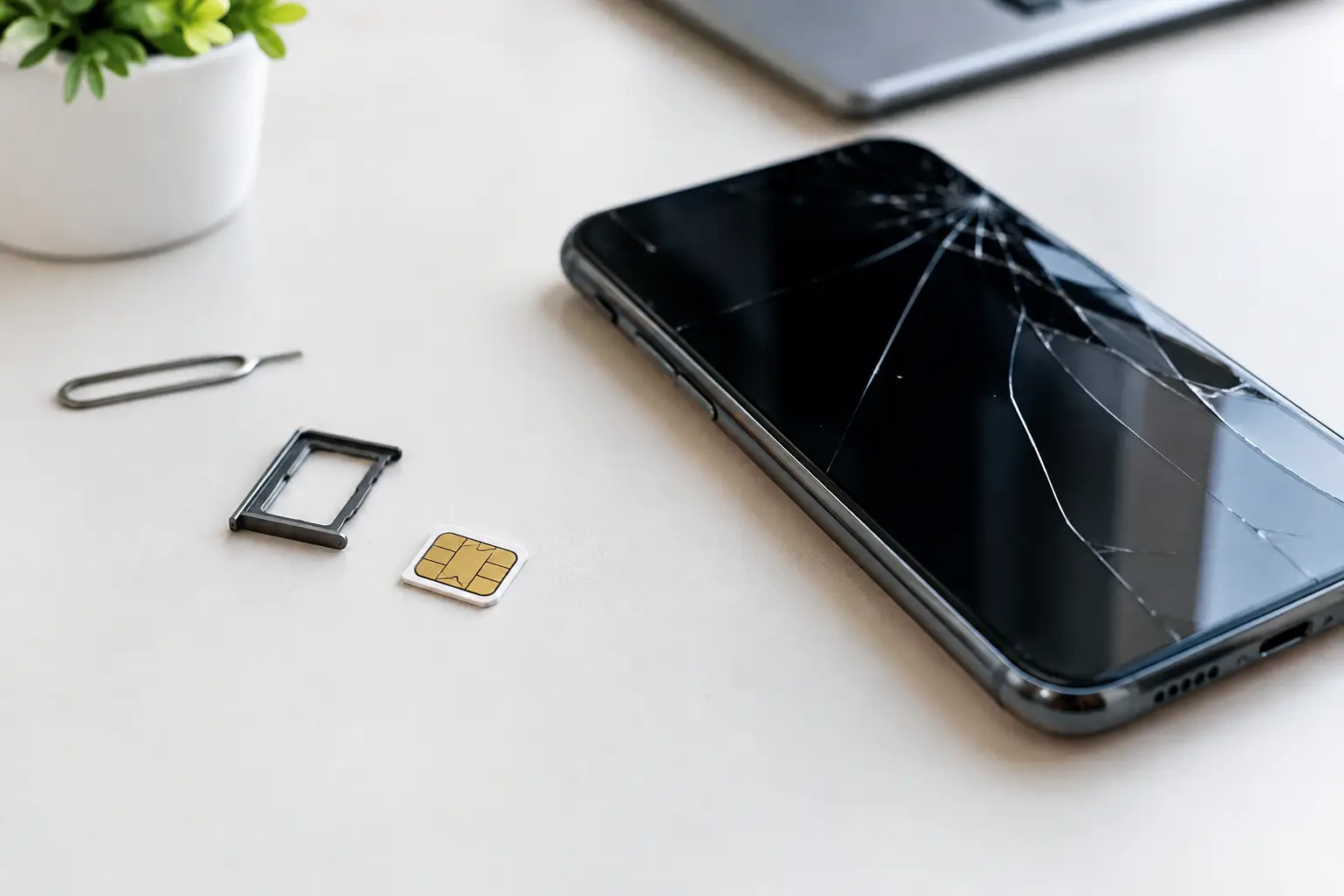
If the issue continues, power the phone off before opening the SIM tray. Use the correct SIM eject tool or a small straightened paper clip. Insert it gently into the tray release hole. Do not push into a microphone hole, speaker opening, or charging port by mistake.
Take the SIM card out and inspect it under good light. Look for cracks, bent corners, deep scratches, discoloration, or dirt on the gold contact area. A damaged SIM cannot always be repaired. It may need to be replaced by the carrier.
If the card looks dusty, wipe it very lightly with a clean, dry microfiber cloth. Do not use water, household cleaners, tape, or anything abrasive. Do not scrape the contacts. Moisture and residue inside the tray can create the same kind of connection problem as a bad SIM.
Check that the card sits flat in the tray and matches the tray outline. A SIM that is even slightly out of place can lose contact when the phone moves. Slide the tray back in straight without forcing it. If the tray is bent, cracked, loose, or will not close properly, stop there. Forcing it can damage the phone’s internal SIM reader.
Turn the phone back on and give it a minute or two to reconnect. If it recognizes the SIM but still has weak service, move near a window or step outside before drawing conclusions. Signal strength depends on your carrier, building materials, weather, congestion, and your location in Richmond or anywhere else.
Check Network Settings Without Creating New Problems
A phone can have a working SIM card and still fail to connect because of a setting. Open your cellular or mobile network settings and make sure the cellular line is turned on. On dual-SIM phones, confirm the correct line is selected for calls, texts, and mobile data.
Set network selection to automatic unless your carrier told you otherwise. Manually choosing the wrong network can leave the phone searching endlessly. If you have 5G issues in one location, temporarily switching to LTE can help determine whether the problem is coverage-related. That is a test, not always a permanent solution.
Check for a carrier settings update and install any pending phone software update when you have Wi-Fi and enough battery. Carrier updates can improve network compatibility after changes to the provider’s system. However, do not assume every update is harmless. If service stopped immediately after a major update, record the timing and the exact error message before changing several settings at once.
A network settings reset is often useful for persistent calling, texting, or mobile data problems. It removes saved Wi-Fi networks, Wi-Fi passwords, Bluetooth pairings, and certain cellular settings. It does not erase photos, apps, or personal files, but you will need to reconnect to Wi-Fi devices afterward. Use it when basic checks have failed, not as the first move.
Do not repeatedly enter random SIM PIN or PUK codes. Too many incorrect PIN attempts can lock the SIM. A PUK code comes from the carrier, not from a guess or a generic online list. If the phone asks for one, contact your carrier before trying anything else.
Test Whether the SIM or Phone Is the Problem
The fastest way to narrow down the cause is a controlled test. If you have access to another compatible, unlocked phone, place your SIM card in that device. If it works normally there, your original phone may have a damaged SIM reader, a software issue, or a network hardware problem.
You can also test a known-working SIM card in your phone, as long as it is the correct size and compatible with the device. If that card also fails, the phone is more likely at fault. If your SIM fails in multiple phones, ask your carrier for a replacement SIM or help with account activation.
Keep in mind that not every phone supports every carrier. A device may be carrier-locked, blacklisted after being reported lost or stolen, or incompatible with a particular network’s frequency bands. An older phone may also have trouble as carriers retire older network technologies. A working SIM alone cannot overcome a compatibility restriction.
What About eSIM Problems?
Many newer phones use an eSIM instead of, or alongside, a physical card. The same basic checks apply: restart the phone, confirm the cellular line is enabled, and verify the account is active. Do not delete an eSIM profile unless your carrier has confirmed you can reinstall it. Deleting it without the activation details can leave you with no service until the carrier issues a new setup method.
If an eSIM shows an activation error after a phone transfer or reset, the carrier may need to reissue the activation. This is usually an account-side fix, not a reason to open the phone.
When It Is Time for Professional Help
Bring the phone in for diagnosis when the SIM tray is damaged, the phone only gets service when pressure is applied to the tray, it has been dropped or exposed to water, or multiple working SIM cards are not detected. Those signs can point to damage in the SIM reader, antenna system, charging board, or motherboard.
Water damage deserves quick attention. Even if the phone works at first, corrosion can spread and create intermittent No SIM errors days later. Avoid charging a wet phone or heating it with a hair dryer. Power it off and have it inspected.
At Excell Wireless VA, a technician can check the tray, reader, antenna connections, and other hardware that a settings menu cannot diagnose. Bring your phone, the SIM card, and a clear description of what happened – especially whether the problem started after a drop, repair, update, carrier change, or water exposure.
Your phone should not have to be treated like a mystery. Start with the safe checks, keep track of the message you see, and stop before a simple SIM issue turns into tray or phone damage.