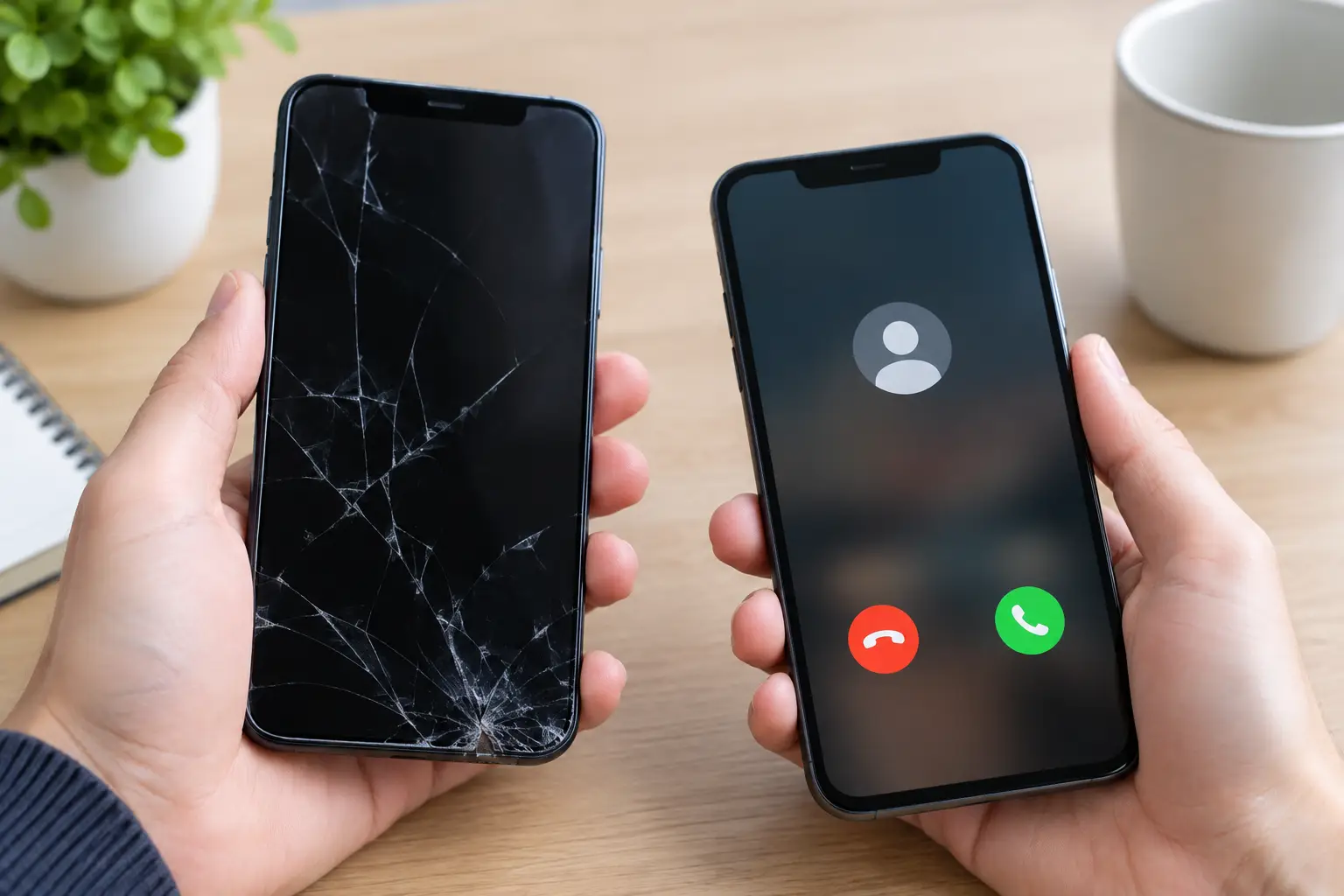
A call connects, the timer starts, and then there is nothing. You cannot hear the other person, they cannot hear you, or the phone never rings out loud in the first place. Knowing how to fix silent calls starts with identifying which kind of silence you have. A quick setting change may solve it. If it keeps happening, the speaker, microphone, charging port, or network connection may need attention.
How to Fix Silent Calls: Identify the Symptom First
“Silent calls” can mean several different problems, and they do not all have the same fix. If you cannot hear the caller but they hear you, focus on your earpiece speaker, call volume, Bluetooth connection, and audio settings. If they cannot hear you but you hear them, check the microphone and anything blocking it.
If neither person can hear the other, the issue may be a weak cellular signal, Wi-Fi Calling trouble, a temporary carrier problem, or phone software that needs a restart. If incoming calls do not ring, check Silent mode, Do Not Disturb, Focus, ringer volume, and notification settings.
Test with more than one caller before assuming the phone is broken. A problem with one person may be on their phone or network. The same problem with several people points back to your device or service.
Start With the Fast Checks
Before changing a lot of settings, do the simple checks that fix a surprising number of call issues. Restart the phone completely, then place another call. A restart clears temporary software conflicts and can reconnect the phone to the carrier network.
Next, turn Bluetooth off and make a test call. Your phone may be sending call audio to wireless earbuds, a car system, a smartwatch, or another device nearby. This is common when the call appears connected but the earpiece is completely quiet. During a call, tap the audio or speaker icon and confirm that audio is set to iPhone, Phone, or the built-in speaker instead of a Bluetooth device.
Raise the volume while a call is active. The side buttons control media volume when no call is happening, but they control call volume during a call. Make sure you are pressing the volume-up button after the call connects.
Also remove any bulky case or screen protector that covers the top earpiece area or microphone openings. Dirt, pocket lint, and adhesive residue can block sound more than people expect.
If You Cannot Hear the Other Person
When the caller is silent on your end, try switching to speakerphone. If you can hear them through the speaker but not through the top earpiece, the earpiece speaker may be clogged, damaged, or failing. You may also have a problem with the phone’s internal audio path.
Inspect the earpiece grille at the top of the display under good light. Use a clean, dry, soft brush to gently loosen dust. Do not push a pin, paper clip, or sharp tool into the grille. That can tear the mesh or damage the speaker behind it.
Test sound outside of a phone call. Play a video, listen to a voicemail, and try speakerphone. These tests help narrow down the issue:
- If all audio is low or missing, the phone may have a broader speaker or software issue.
- If speakerphone works but the earpiece does not, the earpiece speaker is the likely problem.
- If calls are quiet only with one app, such as a calling app, check that app’s permissions, updates, and audio settings.
- If the sound cuts in and out while you move around Richmond or another area, coverage may be the cause rather than the speaker.
For iPhone users, check Settings for Bluetooth connections and Focus modes. For Android users, look for Connected Devices, Bluetooth, Sound, and Do Not Disturb settings. Menu names vary by brand, but the goal is the same: make sure call audio is going to the phone and that calls are allowed to ring.
If the Other Person Cannot Hear You
A caller who cannot hear you usually points to the microphone. Most phones have more than one microphone, often near the bottom charging port and near the rear camera. One microphone may be used for regular calls while another helps with noise cancellation or video recording.
Start by taking off the case. Check for lint around the bottom microphone opening. Use a dry, soft brush and gentle air from a hand blower. Avoid blowing moisture into the port with your mouth, and do not use liquids, metal tools, or high-pressure air.
Then test the microphone with a voice recording. Record a short message and play it back. Make a speakerphone call, record a video with the front camera, and record one with the rear camera. If the sound is missing in every test, the phone may have a microphone hardware issue. If the problem only happens on regular calls, it could be a network, software, or calling-feature issue.
Check microphone permissions for calling apps if the problem occurs in apps such as WhatsApp, FaceTime, Google Meet, or another internet-based calling service. A recent app update, privacy setting, or app glitch can block microphone access.
Fix Calls That Do Not Ring
If people say they called but your phone never made a sound, first look at the physical silent switch on supported iPhones. Then check your ringer volume. This is separate from video, music, and alarm volume on many devices.
Do Not Disturb and Focus modes are another common cause. These modes can silence calls, allow calls only from certain contacts, or send calls directly to voicemail. Turn the mode off temporarily and have someone call again. On Android phones, check Do Not Disturb, Bedtime mode, and any scheduled sound settings.
Call forwarding, spam-call filtering, and carrier apps can also affect incoming calls. If the phone rings sometimes but not for certain numbers, review blocked contacts and spam protection settings. If calls go straight to voicemail in areas where you normally have service, toggle Airplane Mode on for about 10 seconds, turn it off, and wait for the phone to reconnect.
Check Your Network and Calling Features
A phone can show signal bars and still struggle with voice calls. Weak indoor coverage, a busy network, outdated carrier settings, or Wi-Fi Calling trouble can create silent or one-way calls.
Try a call in a different location, preferably where you know your signal is strong. If calls work outside but fail inside your home, workplace, or building, the issue may be coverage. Wi-Fi Calling can help in weak-signal areas, but it can also cause trouble when the Wi-Fi connection is unstable. Turn Wi-Fi Calling off, test a cellular call, then turn it back on only if it improves call quality.
Make sure your phone software is current. System updates often include carrier and calling fixes. On a phone with a physical SIM card, power it off, remove the SIM carefully, check for visible damage, and reinstall it. An old or damaged SIM can cause call problems even when texting and data seem normal.
Resetting network settings is worth trying if the issue started after an update, travel, changing carriers, or repeated connection problems. Keep in mind that this removes saved Wi-Fi networks, passwords, and some connection preferences. It is a useful step, but not the first one to take if Bluetooth or volume settings are the obvious cause.
When Silent Calls Point to Hardware Damage
If your phone was dropped, exposed to water, repaired recently, or has a cracked screen, silent calls may be a hardware issue. A damaged earpiece, microphone, charging-port assembly, flex cable, or board connection can affect calls while other features still appear normal.
Repeated call failures after cleaning, restarting, testing Bluetooth, and checking settings are a good reason to stop guessing. Continuing to poke into speaker holes or repeatedly factory-resetting the phone can waste time and sometimes make a small problem worse.
A local repair technician can test the earpiece, microphones, charging port, speakerphone, and call functions directly. At Excell Wireless VA, customers can bring in a phone and explain exactly what happens during a call, whether it is no ringing, no sound from the caller, no microphone pickup, or intermittent audio. That detail makes troubleshooting faster.
Your phone does not need to stay silent just because a call connects. Try one focused test at a time, and if the pattern points to a part failure, get it checked before an important work call, school pickup, or family emergency exposes the problem again.
Leave a Reply