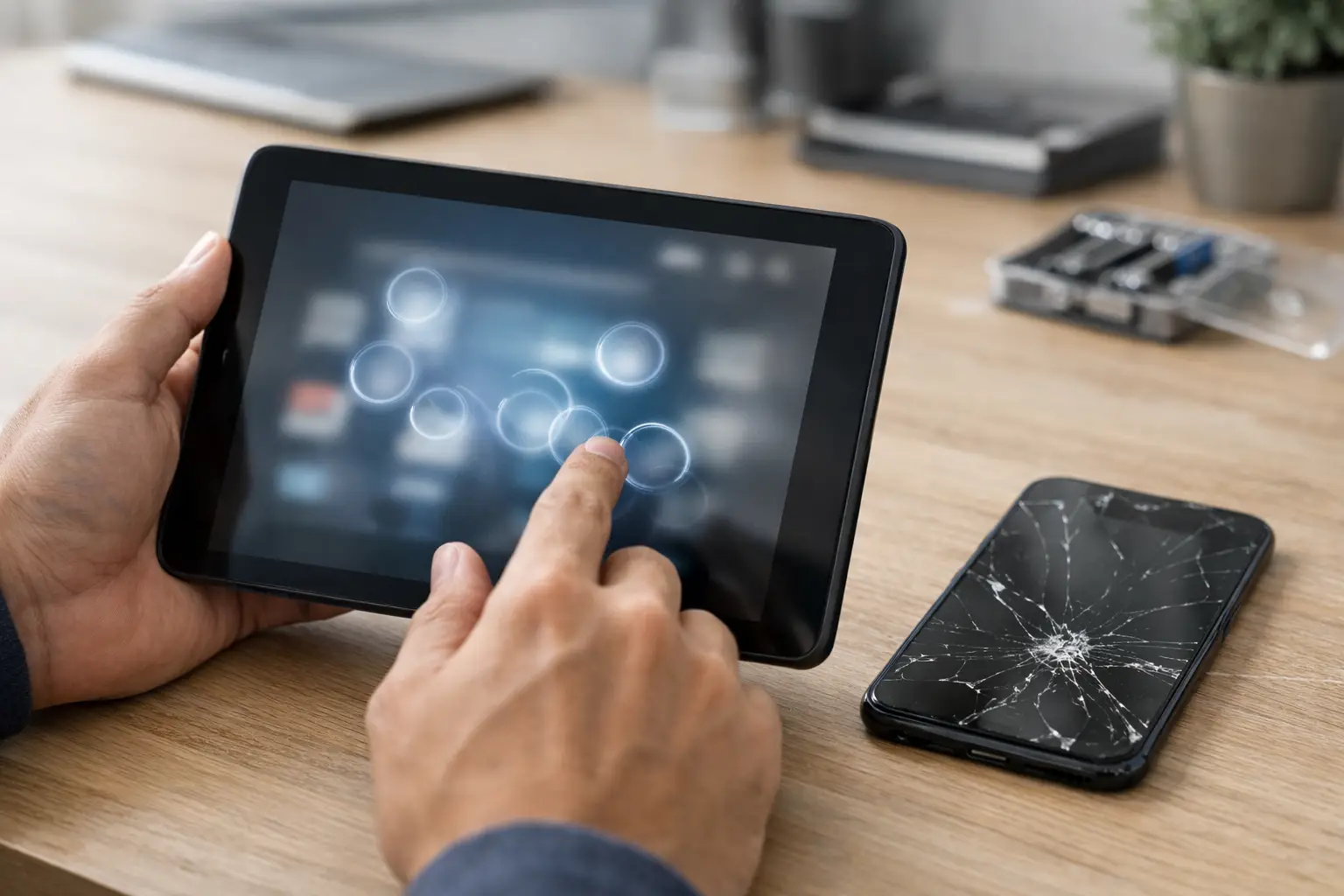
A tablet that opens apps, types random letters, or scrolls without your finger on the screen is more than annoying. It can lock you out of accounts, send accidental messages, and make the device hard to use at all. If you need to fix tablet ghost touch problems, start by ruling out simple causes before assuming the screen needs replacement.
Ghost touch means the touchscreen is detecting input that is not really there. Sometimes the cause is a dirty screen or a bad charging cable. Other times, it points to a damaged digitizer, which is the touch-sensitive layer behind the glass. The right fix depends on when the problem started and what makes it worse.
Why Your Tablet Is Touching Itself
Most ghost touch problems fall into one of two categories: something is interfering with the screen’s ability to read touch correctly, or the touchscreen hardware is failing. A quick change in behavior can help narrow it down.
If the issue only happens while the tablet is plugged in, suspect the charger, cable, outlet, or charging port first. Low-quality or damaged charging accessories can create electrical interference that causes erratic screen input. Unplug the tablet and see whether the random touches stop. If they do, try a known-good charger and cable designed for your tablet.
If ghost touches began after a drop, a cracked screen, pressure in a backpack, or contact with water, physical damage is more likely. A screen can look mostly intact while the digitizer underneath has been damaged. In that case, cleaning or resetting the device may not solve the problem for long.
Software can also be the cause. A recently installed app, a system update that did not complete correctly, low available storage, or a temporary operating system glitch may make a tablet respond unpredictably. Software issues are usually worth checking because they can sometimes be fixed without opening the device.
How to Fix Tablet Ghost Touch at Home
Start with the least invasive steps. Test the tablet after each one so you know what changed. Avoid pressing hard on the display or repeatedly tapping the problem area. That can make a damaged touchscreen behave even worse.
Clean and dry the screen
Turn the tablet off if possible, then remove fingerprints, moisture, crumbs, and residue with a clean microfiber cloth. Do not spray cleaner directly onto the screen. Lightly dampen the cloth with water if needed, then dry the display completely.
Sweat, rain, lotion, food residue, and even a small amount of moisture around the edge of the screen can confuse touch sensors. If the tablet was exposed to liquid, power it down and do not charge it until it is fully dry. Charging a wet device can turn a screen issue into a more serious internal repair.
Remove the case and screen protector
A warped case can put pressure on the edge of the display. A cracked, peeling, poorly fitted, or thick screen protector can also interfere with touch sensitivity. Remove both temporarily and test the tablet on a flat surface.
If the ghost touches stop, replace the protector with one made for the exact tablet model and make sure the case is not pressing against the display. If the issue continues with nothing attached, move on to the next checks.
Restart the tablet and update its software
A full restart clears many temporary glitches. Do not just let the screen time out. Power the device off, wait about 30 seconds, then turn it back on.
Once it is stable enough to use, check for operating system updates. Install any available update while the tablet has a reliable battery level and stable Wi-Fi connection. If the problem began right after an update, another update may contain a fix, but it is also possible that the update exposed an existing hardware issue.
Check whether an app is causing it
Think about what changed before the ghost touches started. Did you install a game, keyboard app, launcher, parental control app, screen recorder, or accessibility tool? Remove recently added apps one at a time and check whether the behavior changes.
On many Android tablets, Safe Mode can help determine whether a downloaded app is responsible. If the screen works normally in Safe Mode, an app is likely involved. On an iPad, remove recent apps and review recent system changes. If the problem happens on the lock screen, in multiple apps, and after a restart, hardware is more likely than one bad app.
Free up storage and back up your data
Very low storage can make a tablet slow, freeze during touch input, or behave unpredictably. Delete files and apps you no longer need, then restart the device. This will not repair a cracked digitizer, but it can improve performance when software is contributing to the problem.
Back up important photos, documents, notes, and account information before doing deeper troubleshooting. Ghost touch can make it difficult to enter a passcode or navigate menus later, especially if the damage gets worse.
When a Factory Reset Makes Sense
A factory reset is a last software step, not the first answer. It erases the tablet and returns it to its original setup state. Consider it only after backing up your data, removing problem apps, restarting, and installing updates.
A reset may help when ghost touches began after a software problem and there is no history of screen damage, liquid exposure, or charging-related issues. If the tablet continues tapping on its own during the setup screen after a reset, the issue is almost certainly hardware. At that point, repeated resets will only cost time.
Signs Your Tablet Needs Screen Repair
A professional inspection is the practical next step when the basic checks do not change anything. The touchscreen may need repair or replacement when ghost touch occurs while unplugged, after a restart, and across every app.
Physical clues matter. Cracks, black spots, flickering, dead areas, lifted screen edges, lines in the display, or a display that separates from the frame all point to a screen assembly problem. A swollen battery can also push the screen upward and create serious safety concerns. Stop using and charging a tablet with a lifting screen, unusual heat, or a swollen-looking back panel.
Some tablets have a separate glass, display, and digitizer layer. Others use a bonded screen assembly. That affects the repair approach and cost. A repair shop needs the exact model and a look at the device to determine whether the problem is the screen, charging system, internal connector, battery, or motherboard.
Avoid These Ghost Touch Mistakes
Do not keep using a damaged charger just because it still charges the battery. If touch problems appear only while charging, replace the cable and adapter before they damage the device or create a safety risk. Avoid cheap, unverified accessories, especially with older tablets.
Do not use heat, pry tools, glue, or internet “screen fixes” on a tablet with a lifting display. Those methods can damage the battery, display cables, and internal components. Also skip random touchscreen calibration apps that promise to repair hardware. They may adjust settings, but they cannot fix a failing digitizer.
If the tablet is still under a manufacturer warranty or device protection plan, review those options before paying for repair. If it is older or out of coverage, a local repair quote can help you decide whether repair makes more sense than replacement.
Get a Clear Answer Before the Problem Gets Worse
Ghost touch rarely improves on its own when the screen or internal connection is damaged. If cleaning, restarting, changing the charger, and removing accessories do not stop the problem, bring the tablet in for a diagnosis. Excell Wireless VA can inspect a range of tablet issues and provide straightforward guidance based on the device and the damage.
The best next move is simple: back up what you can, stop charging the tablet if it is overheating or lifting apart, and get the device checked before random taps turn into a completely unusable screen.