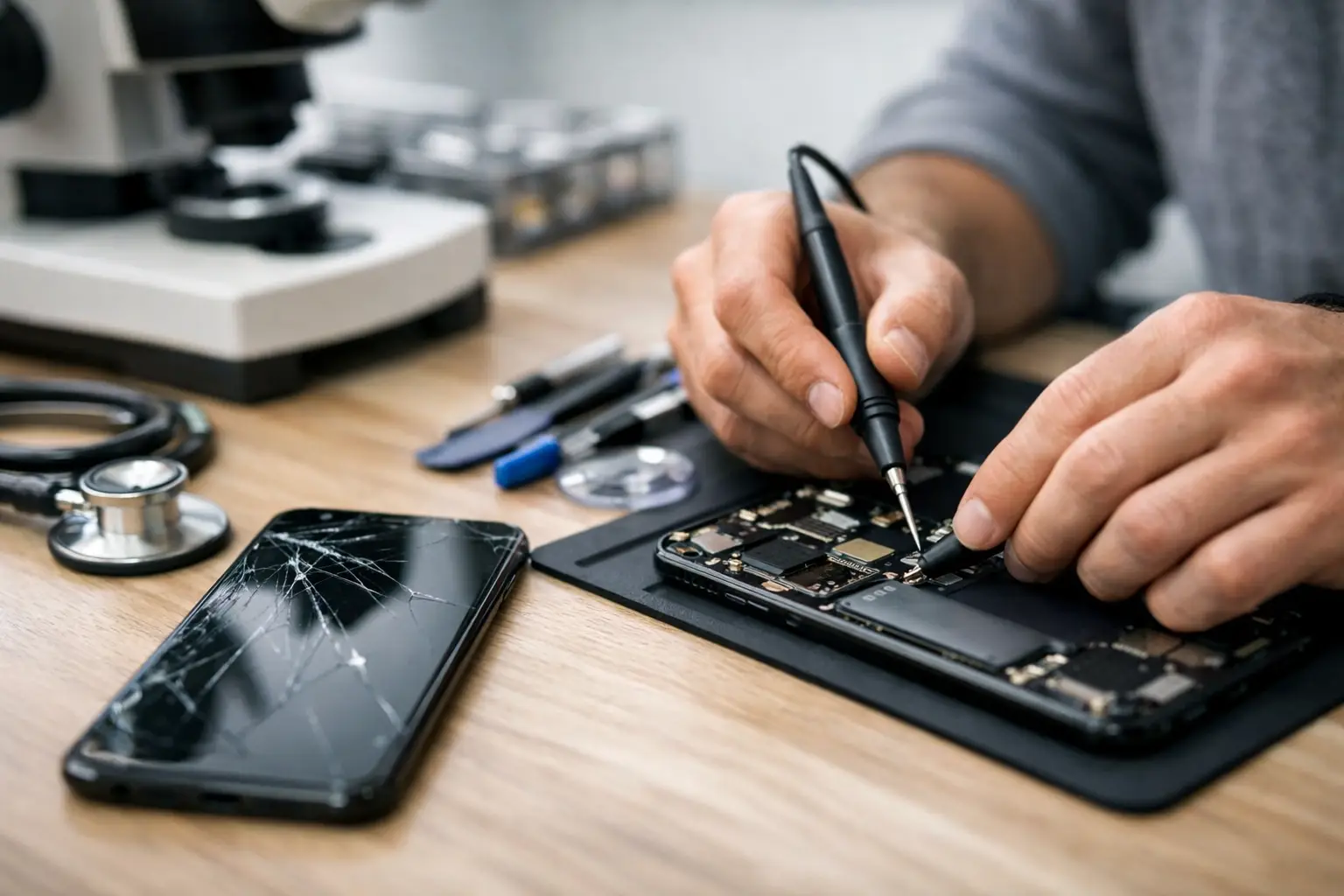
Your phone does not have to be completely dead to need attention. A charger that only works at one angle, a battery that drops from 40% to 5%, or a screen that misses taps can all point to a real problem. This complete phone diagnostic guide helps you narrow down what is happening before you spend time on the wrong fix.
Start simple. Many phone problems come from accessories, settings, storage space, or a recent update. Others are signs of damage that need hands-on repair. The goal is not to take your phone apart at home. It is to identify the issue clearly, protect your data, and know when it is time to bring it in.
Start With the Basics Before Assuming the Worst
Before testing individual parts, remove the phone case and disconnect any accessories. A thick or damaged case can interfere with buttons, wireless charging, cameras, and heat release. If the phone is hot, let it cool down before charging or running more tests.
Check these basics first:
- Restart the phone. A restart clears many temporary software glitches.
- Try a known-good charging cable, wall adapter, and outlet.
- Check available storage. A nearly full phone can freeze, crash, and fail to update.
- Look for recent drops, water exposure, repairs, or software updates.
- Back up important photos, messages, and work files if the phone still turns on.
Write down when the problem started and what changed before it happened. For example, if charging stopped after the phone fell in the car, that detail matters. If the battery began draining right after a new app was installed, the cause may be different.
Complete Phone Diagnostic Guide: Check Each System
A phone is a group of connected systems. A charging issue can look like a battery issue. A black screen can be a display problem, a software crash, or a phone that has lost power. Test one area at a time so you do not make assumptions.
Charging Port and Power Problems
If the phone will not charge, inspect the cable and adapter first. Try another set that you know works with a different device. Then check the charging port using a bright light. Pocket lint can pack tightly into the bottom of the port and prevent the cable from connecting fully.
Do not use metal tools, liquids, or excessive force inside the port. That can damage the charging pins. If you can see debris, it is safer to have the port cleaned professionally.
Notice how the cable fits. Does it feel loose? Does charging start and stop when the cord moves? Does the phone charge wirelessly but not with a cable? Those signs can point to a dirty, worn, or damaged port. If the phone shows a moisture warning, stop charging it by cable and allow it to dry fully. Repeatedly overriding a moisture warning can create more damage.
If the phone has no response at all, leave it connected to a working charger for at least 20 to 30 minutes, then try a forced restart. The button combination varies by model, so use the correct method for your device. A phone that stays cold, silent, and unresponsive after this test may have a battery, port, charging circuit, or board-level issue.
Battery Drain, Overheating, and Random Shutdowns
Fast battery drain is not always a bad battery. First, check battery usage in your phone settings. Look for an app using an unusually large amount of power, especially when you are not actively using it. Location services, weak cellular signal, high screen brightness, background refresh, and constant video streaming can also drain power quickly.
A useful test is to charge the phone fully, use it normally for several hours, and watch whether the percentage drops in a predictable way. If it falls suddenly, shuts off while showing charge remaining, or only works while plugged in, the battery may be worn or failing.
Heat needs more caution. Phones can get warm during gaming, navigation, charging, or video calls. That is normal for short periods. A phone that becomes very hot while sitting idle, during light use, or every time it charges needs attention. Remove the case, stop charging, and power it down if necessary.
Never press on a swollen battery or keep using a phone with a lifting screen, separated back cover, chemical smell, or unusual heat. Those can be signs of battery swelling. Do not puncture the device or try to flatten it. Bring it to a repair professional as soon as possible.
Screen, Touch, and Display Issues
A cracked screen is easy to spot, but display damage is not always obvious. Look for black spots, colored lines, flickering, ghost touches, dim areas, or a screen that stays black while the phone still vibrates or rings. These symptoms often mean the display itself has been damaged, even if the outer glass looks mostly intact.
Clean the screen with a soft, dry microfiber cloth and remove any damaged screen protector. A thick, chipped, or poorly fitted protector can affect touch response. Then test touch in several areas by opening an app and tapping around the edges, center, keyboard, and navigation controls.
If touch works only in certain spots, apps close on their own, or the phone types without being touched, a restart is worth trying. If the issue remains after restarting, it is more likely a screen or internal connection problem. Avoid using a cracked screen in wet conditions, since moisture can enter through damaged glass.
Camera, Speaker, Microphone, and Button Tests
Open both the front and rear cameras. Test photos, video, flash, focus, and zoom if your phone has it. A blurry lens may simply need cleaning, but repeated shaking, clicking, inability to focus, or a black camera view can indicate hardware damage.
For sound, play a song or video at normal volume. Then make a phone call and test both the earpiece and speakerphone. Record a short voice memo and play it back to check the microphone. If people can only hear you on speakerphone, or your recordings sound muffled, clean visible debris from the microphone openings carefully with a dry soft brush. Do not spray cleaner into the device.
Test the volume buttons, power button, fingerprint reader, Face ID or other facial recognition feature, vibration, and charging indicator. One failed feature may be isolated. Several failed features after a drop or water exposure can point to internal damage.
Software, Storage, and Connection Problems
When the phone is slow, freezes, loses Wi-Fi, or apps keep crashing, start with software checks. Install available system and app updates, but only after you have enough storage and a backup. An interrupted update can make an existing problem worse.
Delete apps you no longer use, clear large downloads, and restart the phone. If one app is the problem, update it, force-close it, or reinstall it. If the entire phone is acting up, check storage first. Devices with very little free space often struggle with basic tasks.
For Wi-Fi and Bluetooth issues, test another network or accessory. If no device can connect to your phone by Bluetooth, and restarting does not help, reset network settings if you know your Wi-Fi passwords. This can fix saved connection errors, but it will remove stored networks and Bluetooth pairings.
A factory reset is a last-step software test, not a first move. It erases your phone and does not repair a broken port, failing battery, or damaged screen. Only consider it after backing up your data and ruling out obvious hardware trouble.
When to Stop Testing and Get Repair Help
At-home checks are useful, but there is a point where more testing can cause more trouble. Stop and get help if the phone has a swollen battery, gets dangerously hot, shows water damage, has exposed glass or sharp edges, will not power on, or has important data you cannot risk losing.
You should also bring the device in when charging only works at an angle, the screen has lines or black spots, the phone repeatedly restarts, or the camera, microphone, and speaker fail after a drop. These problems often need a physical inspection, not another app download.
For Richmond customers, Excell Wireless VA can inspect phones across major brands and help determine whether the issue is a practical repair or a sign it is time to consider replacement. Bring the device, its charger if charging is the concern, and a clear description of what you noticed.
A good diagnosis saves time and avoids unnecessary repairs. Start with the safe checks, protect your information, and trust the warning signs. If the problem keeps coming back, getting a clear answer from a local repair shop is better than living with a phone you cannot rely on.