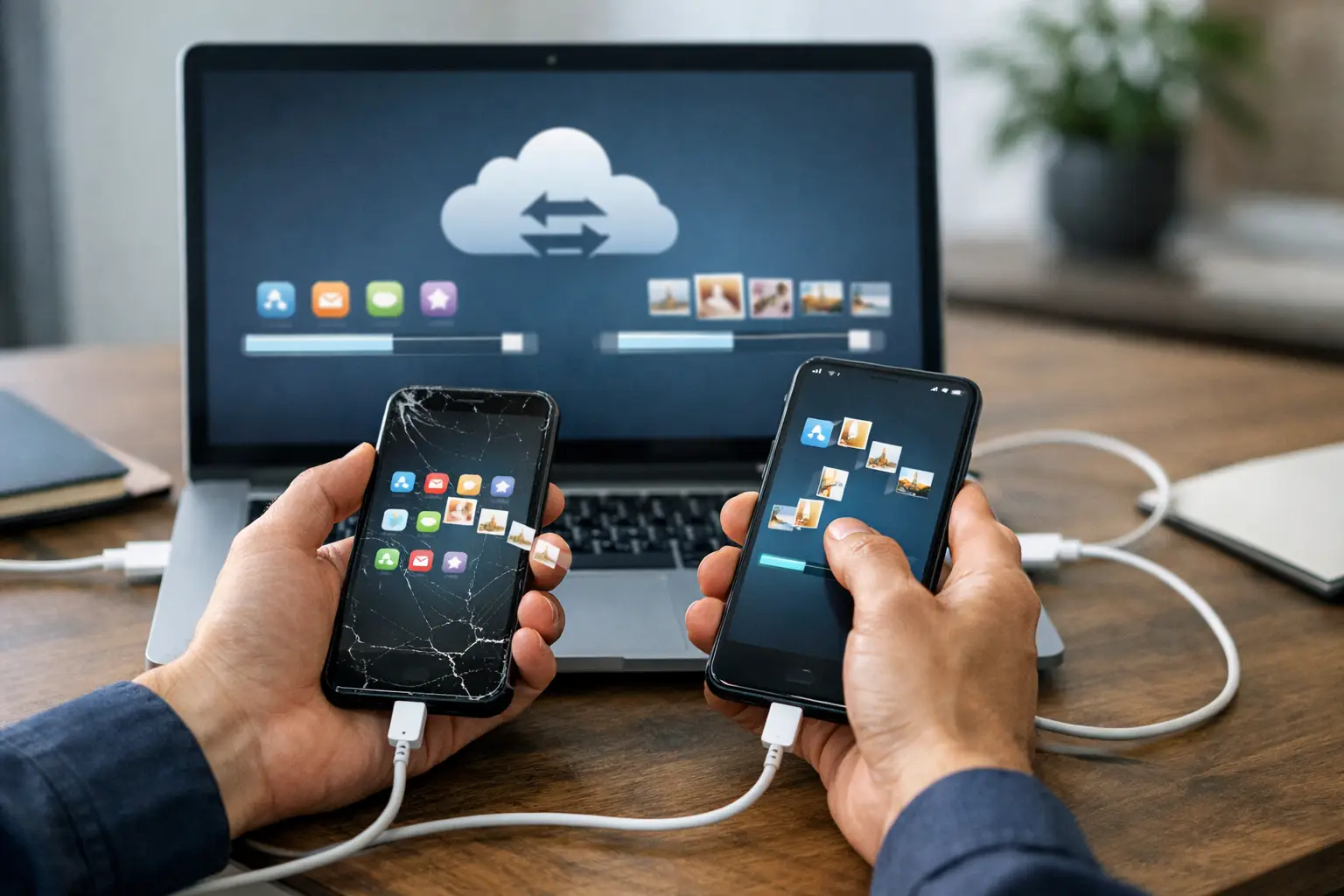
A new phone should feel like an upgrade, not a panic attack when your photos, messages, banking apps, and contacts are still on the old one. Knowing how to transfer phone data before you start can save you from missing files, duplicate contacts, and a long night trying to remember passwords.
Most transfers are straightforward when both phones turn on and connect to Wi-Fi. The situation changes when the old device has a cracked screen, weak battery, charging problem, or water damage. In those cases, protect what is still accessible first, then decide whether a direct transfer, cloud backup, or hands-on help makes the most sense.
Before You Transfer Phone Data, Do These Checks
Do not wipe, trade in, or reset the old phone yet. Keep it powered on until you have checked the new device and confirmed that your important information arrived.
Charge both phones to at least 50 percent, or leave them plugged in during the transfer. A large photo library, years of text messages, and downloaded apps can take a while. A transfer that stops because one phone dies can leave you unsure of what copied and what did not.
You should also make sure you know the password for the account tied to the old phone. For an iPhone, that usually means the Apple Account password. For Android, it is normally the Google account password, though Samsung users may also need their Samsung account information. These passwords matter for restoring backups, downloading purchases, and removing activation locks later.
Check available storage on the new phone before moving everything. If your old phone has 200 GB of photos and videos but the new one has 128 GB of storage, a full direct transfer may not fit. In that case, moving your files to cloud storage or selecting only what you need may be the better choice.
Finally, take a few minutes to make a fresh backup if the old phone still works. A backup gives you another path if the transfer fails halfway through.
How to Transfer Phone Data From iPhone to iPhone
The simplest option is Apple’s direct setup process, often called Quick Start. Put the two iPhones near each other, turn on the new phone, and follow the setup prompt that appears on the old one. You will be asked to scan an animation and confirm your Apple Account.
Choose the option to transfer directly from the old iPhone when both devices are working well. Keep them close together, connected to power, and on Wi-Fi until the process finishes. The new phone can bring over settings, photos, messages, apps, accounts, and much of your device setup.
You can also restore an iPhone from an iCloud backup. This is useful if the old phone is unavailable but you have a recent backup saved online. During setup, select the restore-from-backup option and sign in with the same Apple Account. The phone may be usable before every photo and app finishes downloading, so give it time to complete on Wi-Fi.
A computer backup is another option, especially if you do not have enough cloud storage. Back up the old iPhone to a Mac or PC, then restore that backup to the new iPhone. An encrypted computer backup can carry over more sensitive information, including saved passwords and health data, if you remember the backup password.
How to Transfer Phone Data From Android to Android
Many Android phones guide you through data transfer the first time you turn them on. During setup, select the option to copy apps and data from your old phone. Depending on the devices, you can use a USB cable, a wireless connection, or a Google backup.
A cable transfer is often faster and more complete, particularly for a large number of photos and videos. Use a quality cable that fits both devices or the adapter included with the new phone. Follow the on-screen prompts and select what you want to copy, such as contacts, text messages, call history, photos, apps, and device settings.
If you are restoring from Google, sign in to the same Google account during new-phone setup. Your contacts, calendar, many apps, and backed-up settings can return automatically. Photos may appear through Google Photos if they were backed up there, but they might not all be stored directly on the new phone unless you download them.
Some manufacturers offer their own transfer tools. Samsung Smart Switch, for example, can move content from many Android phones and iPhones to a Samsung device. These tools can be helpful, but they do not always transfer every app setting or every login. Plan to sign in to some apps again.
Moving Data Between iPhone and Android
Switching platforms takes a little more attention because iPhone and Android handle messages, cloud storage, and apps differently. Start the new phone’s setup process before you begin using it. If you already completed setup, you may need to reset the new device to access the full transfer options.
When moving from iPhone to Android, use the setup instructions on the new Android phone. A cable connection is usually the most reliable method. You may be able to copy contacts, photos, videos, calendar items, and some messages. If you use iMessage, turn it off on the old iPhone after your transfer is complete. If you skip this step, text messages from other iPhone users may keep going to your old device instead of your new phone.
When moving from Android to iPhone, use Apple’s Move to iOS process during iPhone setup. Keep both phones plugged in and connected to the same Wi-Fi network if possible. It can transfer contacts, message history, camera photos and videos, mail accounts, calendars, and some free apps that are available in Apple’s App Store.
Expect a few differences. Paid apps may need to be purchased again if they are not available across both platforms. App-specific data does not always transfer. Banking apps, authenticator apps, and secure work apps commonly require a fresh sign-in and identity check.
Do Not Forget These Important Items
Your photos are usually the first concern, but they are not the only data that matters. Before you erase the old phone, open the new one and check your contacts, recent messages, photo library, notes, calendar, and email accounts.
Pay close attention to authentication apps. If you use an app that creates one-time security codes for email, work, social media, or financial accounts, transfer or back up those codes correctly before resetting the old phone. Some authenticator apps have their own export process. Others require you to sign in and set them up again account by account.
Also check your payment cards, digital wallet, eSIM, and carrier service. Payment cards generally need to be added again for security. eSIM activation varies by carrier and phone model. Sometimes it transfers automatically during setup, while other times you will need a carrier QR code or help from your provider.
If you use WhatsApp or another messaging service with its own backup system, confirm that chat history has been backed up inside that app. A phone-to-phone transfer may move it, but do not assume it will. Open the app on the new phone and verify your conversations before removing it from the old one.
When the Old Phone Is Broken
A broken phone does not always mean your data is gone. If the phone powers on but the screen is cracked or unresponsive, there may still be a way to connect it, unlock it, back it up, or transfer data directly. The key issue is whether you can unlock the device. Modern phones encrypt personal data, so a repair shop cannot simply bypass your passcode to pull information from it.
If the display is visible but touch is failing, a temporary screen repair may be the practical first step. If the charging port is damaged, restoring power safely may be enough to complete a backup. Water damage is more urgent. Do not keep charging a wet device or repeatedly try to turn it on, since that can make damage worse.
For Richmond customers dealing with a damaged phone and an urgent data move, Excell Wireless VA can assess the device and explain the realistic options. Bring the old phone, the new phone if you have it, and any passwords or account details you may need.
Verify Everything Before Erasing the Old Phone
Once the transfer looks finished, make a few calls, send a test text, open your photos, and sign in to your essential apps. Check that your phone number works on the new device and that voicemail is set up. If possible, wait a day or two before wiping the old phone. You may notice a missing note, document, or app after using the new phone normally.
Only after you have verified the transfer should you sign out of accounts, remove your payment cards, disable any device-finding feature as required, and factory reset the old phone. That final check is what turns a data transfer from “probably fine” into a phone switch you can trust.