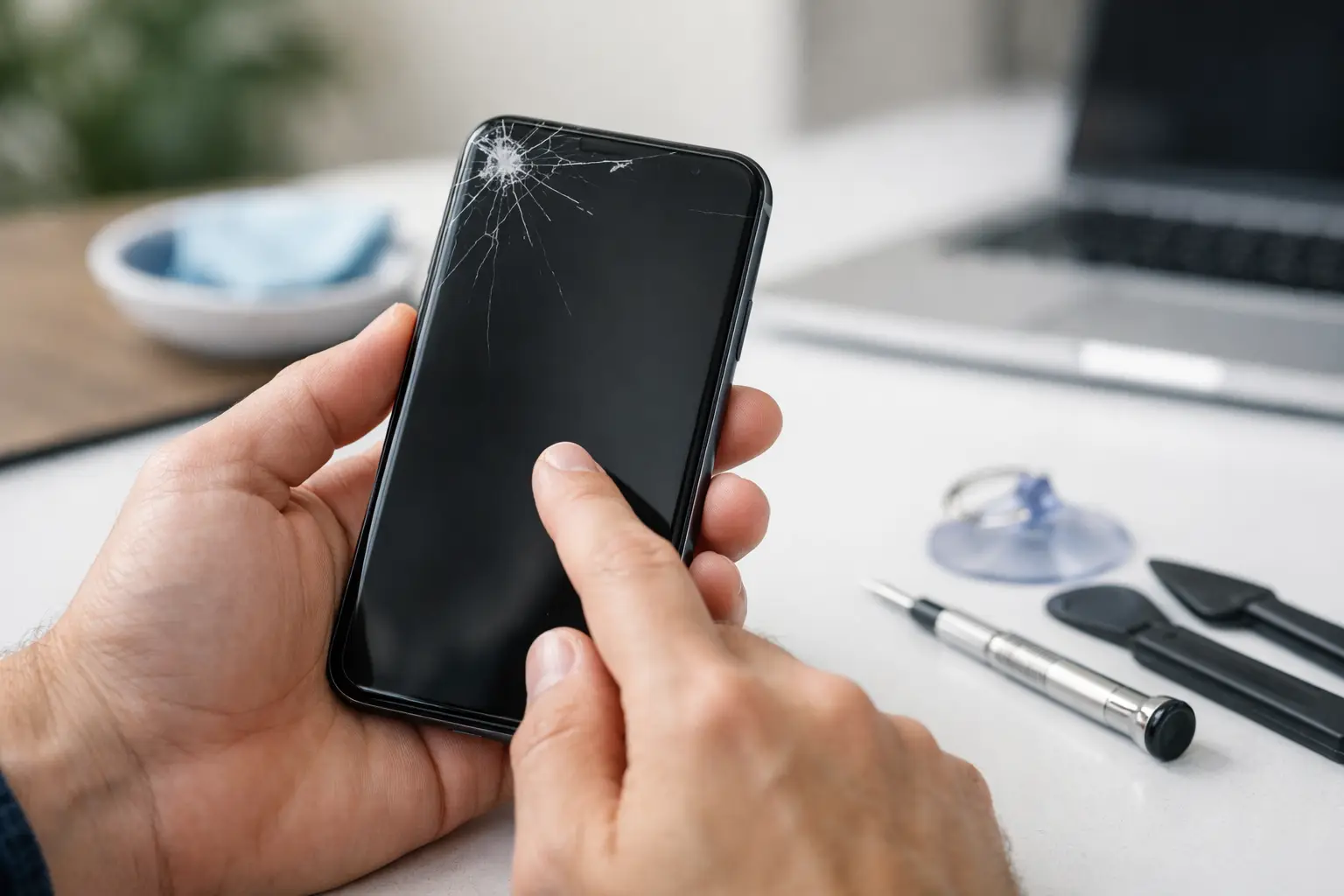
A touchscreen that stops responding can turn a normal day into a problem fast. You cannot answer a call, approve a banking login, pull up directions, or even shut the phone down normally. Before you assume the screen needs replacement, use these steps to fix unresponsive phone touchscreen problems safely and narrow down what is actually wrong.
Start With the Simple Causes
Not every frozen or unresponsive display is a broken screen. Dirt, moisture, a damaged screen protector, a bad charger, or a temporary software crash can all make a phone act like touch input has failed.
First, take the phone off the charger. A low-quality, damaged, or incompatible charging cable and adapter can sometimes interfere with touch response. If the screen works better once it is unplugged, stop using that charger and test another known-good charging setup.
Then remove your case and screen protector. A thick, cracked, peeling, or poorly fitted protector can create dead spots or reduce sensitivity, especially around the edges of the display. Wipe the screen with a clean, dry microfiber cloth. Make sure your hands are dry too. Water droplets, sweat, lotion, and grime can confuse capacitive touchscreens.
If the phone has been near water, do not keep tapping at it or plug it in. Turn it off if possible, remove the case, and let it dry in a well-ventilated area. Do not use rice, a hair dryer, an oven, or compressed air. Heat and forced air can push moisture deeper into the device or damage internal parts.
Force Restart the Phone
If the screen looks normal but will not respond, a force restart is usually the next move. This restarts the operating system without requiring you to use the touchscreen. It does not normally erase your photos, apps, or messages.
On many newer iPhones, quickly press and release Volume Up, quickly press and release Volume Down, then hold the Side button until the Apple logo appears. On many Android phones, hold the Power button and Volume Down together for about 10 to 20 seconds. The exact button combination varies by model, so do not worry if it takes a second attempt.
After the phone comes back on, test the full screen. Open the keyboard, swipe around the home screen, and try the areas that were not responding. If touch returns and stays normal, the issue may have been a temporary software freeze.
If the screen freezes again soon after restarting, pay attention to when it happens. Does it only happen in one app? Only when charging? Only after the phone gets hot? Those details help separate a software issue from a screen, battery, or charging-port problem.
Check Whether It Is One App or the Whole Phone
A single app that will not respond is different from a touchscreen that has failed across the device. If touch works everywhere except one app, force-close that app when possible, restart the phone, and install any available app and system updates.
Storage can matter too. A phone with almost no free storage may lag, crash, or appear frozen. Delete unneeded downloads, duplicate photos, and apps you no longer use if you can access the device. Back up important data before making bigger changes.
If the entire screen is unresponsive – including the lock screen, keyboard, and home screen – the problem is more likely related to the display assembly, internal connection, liquid exposure, or a deeper software failure.
Look for Signs of Screen Damage
A cracked screen does not always stop working immediately. Sometimes a phone keeps working after a drop, then develops unresponsive areas days later. The glass may look like the only damaged part, but the touch-sensitive layer underneath can be affected too.
Watch for these warning signs:
- Touch works in some areas but not others, often in a strip along one side.
- The screen registers taps you did not make, often called ghost touch.
- The display flickers, shows lines, has dark ink-like spots, or turns green, white, or black.
- Touch fails after a drop, bend, impact, or exposure to water.
- The phone vibrates, rings, or receives notifications, but the display stays black or will not respond.
These symptoms usually point beyond a quick setting change. A screen replacement may be needed, but a technician should inspect the phone first. On some devices, the issue can involve a loose display connector, a damaged frame, corrosion, or a failing battery pressing against the screen. Replacing only the visible glass will not solve those problems.
Do Not Make the Problem Worse
When a touchscreen is not working, people often keep pressing harder. That will not improve a capacitive display and can make existing cracks spread. Avoid bending the phone, prying up the screen, or trying to open it with household tools.
Be cautious with online repair videos as well. Many modern phones use strong adhesive, delicate flex cables, and parts that require model-specific tools. A repair that starts as a screen issue can become a damaged connector, Face ID or fingerprint problem, battery puncture, or loss of water resistance.
If your phone is overheating, swelling, giving off a chemical smell, or lifting the screen away from the frame, stop using it. Do not charge it. A swollen battery needs prompt professional attention because it can damage the display and create a safety risk.
Back Up Your Data If Touch Still Works Sometimes
Intermittent touch response is your chance to protect your data. Back up photos, contacts, notes, authentication apps, and important files while the phone still turns on. If a section of the display works, rotate the device to reach controls from a different angle. You may also be able to use voice controls, a paired Bluetooth device, or a compatible mouse adapter, depending on your phone.
Do not factory reset the phone as your first answer. A reset can help with a persistent software problem, but it will erase data if you do not have a backup. It also will not repair a damaged touchscreen, liquid corrosion, or a loose internal cable.
If you decide to reset after backing up, remove any account locks only when you are ready to hand the device over or set it up again. Keep your passwords and verification methods available. Modern phones often require account credentials after a reset.
When to Bring It In for Repair
A local repair visit makes sense when the phone has physical damage, liquid exposure, recurring ghost touches, dark display spots, or touch failure that returns after a force restart. It is also the practical choice when the phone is your main tool for work, school, family coordination, or business calls and you cannot risk more downtime.
Bring the phone in even if the screen looks fine. Internal damage is not always visible from the outside. A technician can test touch response, display function, charging behavior, battery condition, and signs of moisture before recommending a repair. That matters because the right fix depends on the actual cause, not just the symptom.
For Richmond customers, Excell Wireless VA can inspect phones across major brands and help determine whether the issue is the screen, software, charging system, or another internal component. Describe what happened before touch stopped working – a drop, water exposure, recent update, charging issue, or sudden failure – when requesting a quote. Those details can speed up the diagnosis.
Your phone should not become a guessing game. Start with cleaning, removing accessories, and a force restart. If touch is still unreliable, protect your data and get the device checked before a small issue turns into a complete screen failure.