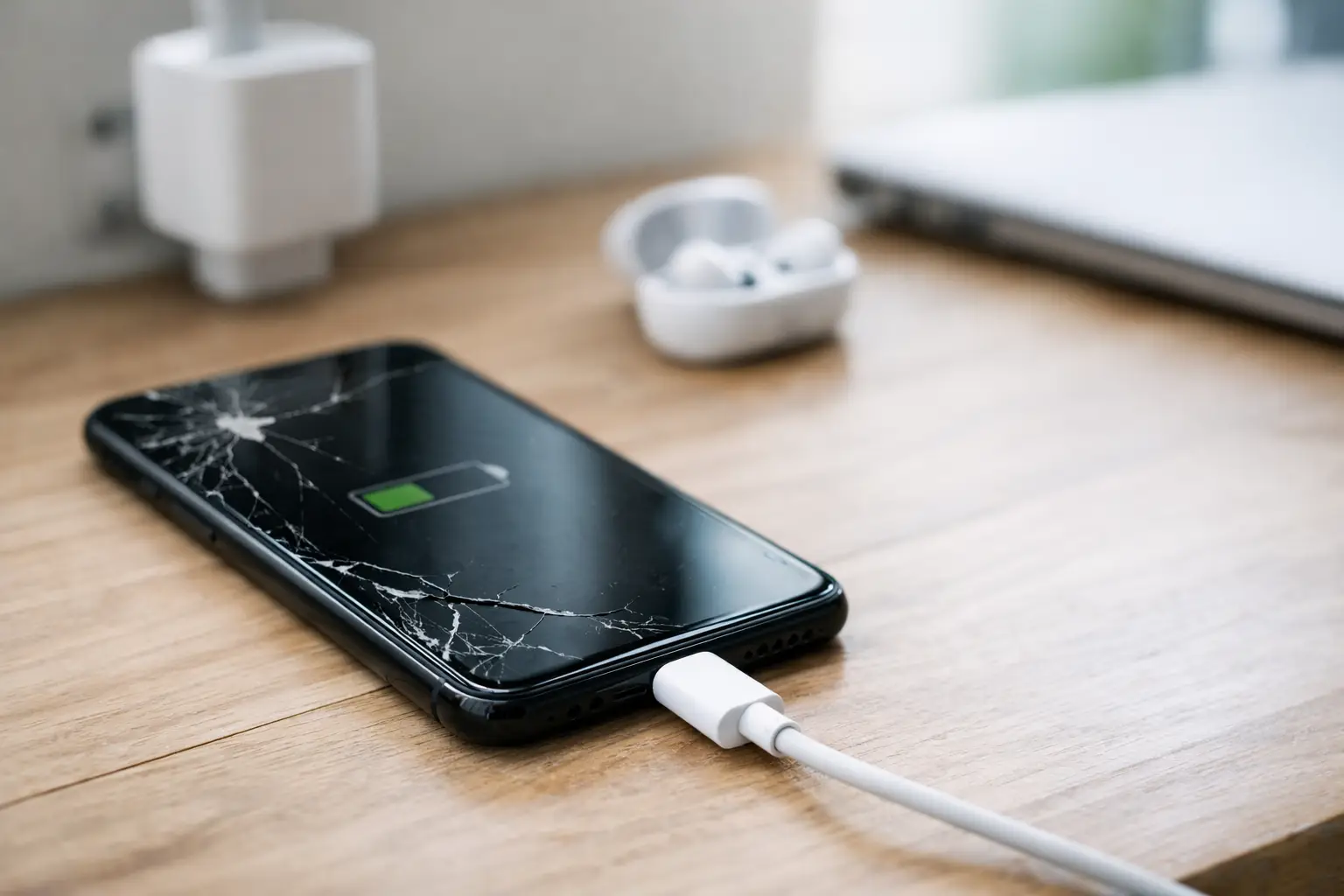
A phone that will not charge can turn into a real problem fast. You miss calls, lose access to work apps, and may not be able to use banking, maps, or messages when you need them. Before assuming the battery is dead, use these safe steps for how to fix phone not charging issues. Many charging problems come down to a worn cable, blocked port, weak power source, or a software glitch.
Start simple and work your way toward repair. Do not force a charging cable into the port, keep charging a phone that is getting unusually hot, or ignore a swollen battery. Those are signs to stop and get help.
Start With the Charger and Power Source
The cable and wall adapter are the most common causes of charging trouble. A cable can look fine on the outside while the wires inside are damaged from bending, pulling, or being wrapped too tightly. Wall adapters can also fail or deliver too little power.
Try a different cable first, then try a different charging block. Use a known-working cable and adapter that are made for your device or are properly certified for it. If your phone begins charging with the replacement, the phone itself may be fine.
Next, test a different wall outlet. Skip power strips and extension cords during this test if possible. A loose outlet or failing strip can create an inconsistent connection that makes it look like the phone has a problem.
If you normally charge from a laptop, vehicle USB port, or portable battery, switch to a wall outlet. Those sources may charge more slowly, especially with newer phones that need more power. A low-power source can keep the battery percentage from moving even though the charging icon appears.
Check the Charging Port for Lint and Damage
A pocket-sized amount of lint can prevent a cable from reaching the charging contacts inside the phone. This happens often with phones carried in jeans, jackets, purses, backpacks, or work bags. The cable may feel loose, fall out easily, or only work when held at a certain angle.
Turn the phone off if you can. Use a flashlight to look into the charging port. If you see packed lint, do not use a metal pin, paper clip, knife, or anything that can scratch or bend the contacts. A wooden toothpick or a soft, non-metal tool can gently lift loose debris from the opening. Work slowly and do not push debris farther inside.
Compressed air can help with loose dust, but it will not always remove packed lint. Never spray liquid cleaner, rubbing alcohol, or water into the port. If the port still feels loose or the cable will not seat fully after a careful cleaning, the port may be worn, bent, or damaged and may need repair.
Watch for moisture warnings
Many newer phones can detect moisture in the charging port. If you see a liquid or moisture warning, unplug the charger right away. Leave the phone in a dry, well-ventilated area with the port facing down and give it time to dry naturally.
Do not put the phone in rice. Rice dust can enter the port, and it does not reliably remove moisture from inside the device. Also avoid heat guns, hair dryers, ovens, and direct sunlight. Too much heat can damage the battery, screen, seals, and internal parts.
Restart the Phone Before Assuming Hardware Failure
Sometimes the phone is receiving power, but a software issue prevents the screen from showing the correct charging status. A restart can clear a temporary error in the operating system or charging management software.
Unplug the charger, restart the phone, then reconnect it to a known-working wall charger. Leave it alone for 15 to 30 minutes. If the battery was fully drained, the display may remain black for several minutes before the phone has enough power to turn on.
If the phone is frozen and will not restart normally, use the manufacturer-specific force restart button combination for your model. Do not repeatedly press buttons or reconnect the cable every few seconds. Give the device time to respond.
Also check for a system update once the phone turns on. Updates can fix known power-management problems, but do not install an update if the phone cannot maintain enough battery power to complete it safely.
Rule Out Wireless Charging Problems
If your phone charges wirelessly but not with a cable, the charging port is the likely issue. If it charges by cable but not on a wireless pad, check the pad, its power adapter, and the phone case.
Thick cases, metal accessories, credit cards, magnetic attachments, and misalignment can block or interrupt wireless charging. Remove the case and place the phone flat in the center of the charging pad. If it starts charging, the device may be fine and the case or accessory is causing the problem.
Wireless charging is also usually slower and creates more heat than a wired connection. If your phone is warm, remove it from the charger and let it cool before trying again. Charging may pause automatically when a phone gets too hot or too cold.
Look for Signs the Battery Is the Issue
Phone batteries wear down over time. Heavy use, frequent heat exposure, and years of charging cycles can reduce their ability to hold a charge. A weak battery may charge very slowly, shut down at random percentages, drain quickly, or only work while connected to power.
A battery issue is more likely if the phone is several years old and the charging cable fits securely, multiple chargers have been tested, and the port is clean. It is also possible for a phone to show that it is charging while the battery percentage barely rises because the battery cannot accept or retain power normally.
Stop using the phone and do not charge it if you notice a bulging back cover, lifted screen, unusual chemical smell, smoke, leaking material, or extreme heat. A swollen battery needs professional attention. Do not press the screen back into place or puncture the battery.
When a Charging Port Repair May Be Needed
A charging port can fail after repeated use, a drop, moisture exposure, or debris buildup. You may need repair if the cable only works at one angle, slips out, will not click into place, or charges on and off when the phone is sitting still.
Port repairs are not always the same. On some phones, the charging port is a separate part that can be replaced. On others, the port is integrated into a larger board or connected to components that require more detailed diagnosis. That is why a quick inspection matters before assuming the repair cost.
Do not keep bending the cable, taping it in place, or forcing a connection to get through the day. That can worsen damaged contacts and may create a short. Back up your phone as soon as it has power, especially if the charging behavior has become unreliable.
Get Help When Basic Checks Do Not Work
If you have tried a known-good charger, inspected the port, restarted the phone, and allowed it to charge for at least 30 minutes with no result, it is time for a hands-on diagnosis. The cause could be the battery, port, charging circuit, internal cable, water damage, or another power-related issue.
For Richmond customers, Excell Wireless VA can inspect phones across major brands and help identify whether the issue is with the charger, port, battery, or internal hardware. Bring the phone and the charger you normally use when possible. That gives the technician a better chance of finding an intermittent cable or connection issue quickly.
Your phone does not have to be completely dead before you get it checked. If charging has become slow, loose, hot, or inconsistent, taking care of it early can help prevent a small problem from leaving you without your device when you need it most.