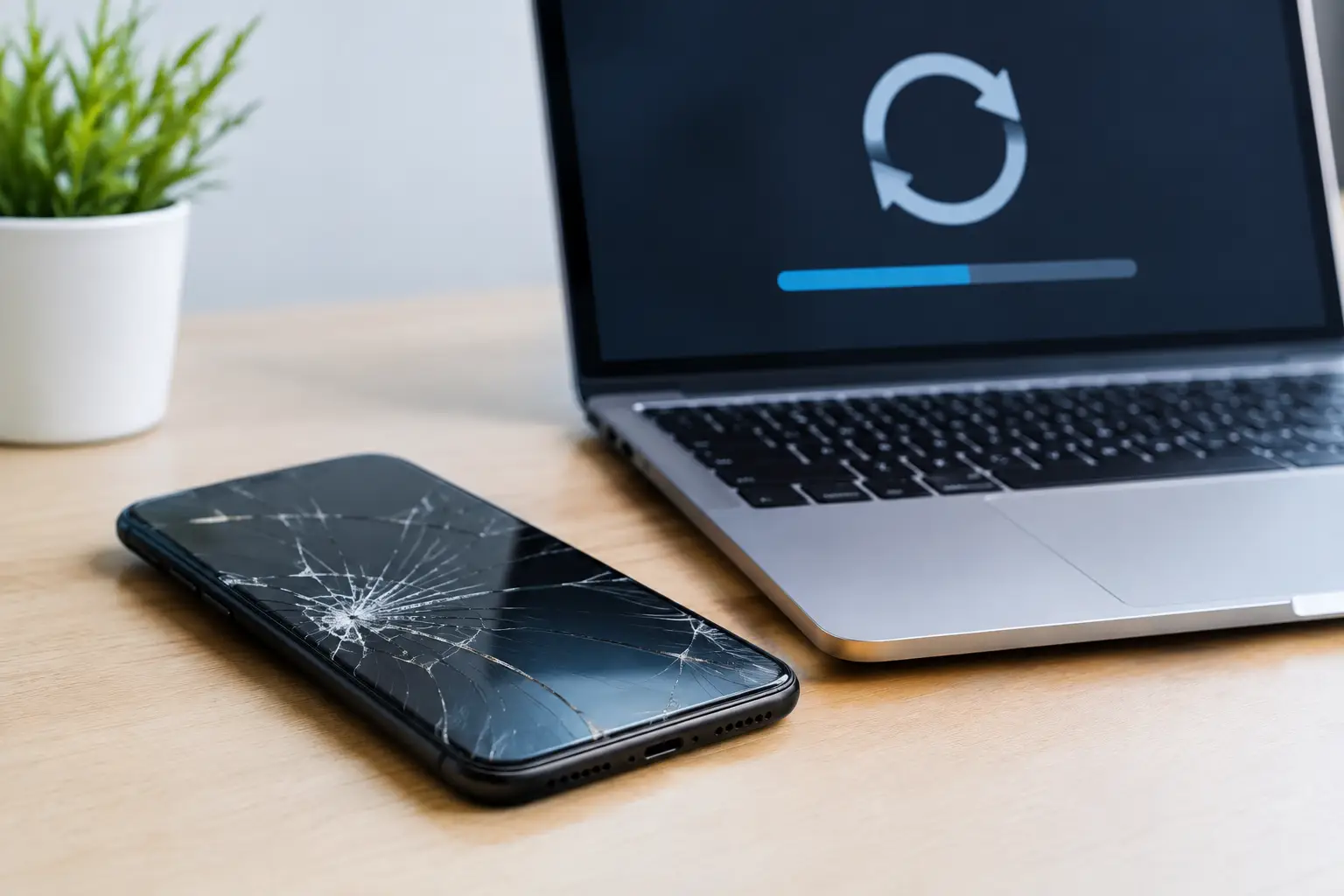
A software update is supposed to fix problems, not leave you staring at a frozen logo, a black screen, or an endless loading bar. Failed update recovery is the process of getting your phone, tablet, computer, or other personal device running again after an update stalls, crashes, or installs incorrectly. The right next step depends on what the device is doing – and what data is still on it.
Before trying random fixes, stop and look at the symptoms. A device that is simply taking a long time to finish an update needs a different approach than one that repeatedly restarts or will not power on at all.
What a Failed Update Can Look Like
A failed update does not always display an error message. Sometimes the device says the update is complete but starts acting strange afterward. Other times, it never gets past the manufacturer logo.
Common signs include a screen frozen on an update percentage, a spinning wheel that never ends, repeated restarting, apps closing unexpectedly, missing storage space, weak battery life, or a message saying the software could not be installed. On computers, you may see a recovery screen, a boot error, or a system that loads to a blank display.
These issues can happen during operating system updates, security patches, app updates, firmware updates, or carrier updates. Phones and tablets are especially vulnerable when an update begins with very low battery power, limited storage, unstable Wi-Fi, or a damaged charging port that interrupts power.
First Steps for Failed Update Recovery
The safest first move is patience. Major updates can take longer than expected, particularly on older devices or models with nearly full storage. If the progress bar is moving, the screen is changing, or the device feels warm, give it time. Avoid forcing it off too quickly.
If nothing has changed for a long period and the device is unresponsive, try a forced restart. This is different from a normal restart because it can work when the screen is frozen. The button combination varies by model, so do not keep pressing buttons at random if you are unsure. Repeated incorrect attempts can trigger emergency features or make it harder to tell what the device is doing.
Once the device starts, connect it to a reliable charger and let it reach a safe battery level. Then check available storage. Updates need room to download, unpack, and install. Deleting a few large videos, unused apps, or old downloads may be enough to let a failed update finish correctly.
If the device can connect to Wi-Fi, use a stable home or work network rather than weak public Wi-Fi. A dropped connection can interrupt downloading or verification. For cellular devices, avoid starting another large update while you are traveling or in an area with unreliable service.
Do Not Turn a Software Problem Into Data Loss
A factory reset can solve some update failures, but it is not the first answer for every device. Resetting can erase photos, messages, notes, app data, files, and saved settings if they are not backed up. If the device still opens at all, check whether important data can be copied or backed up before taking bigger steps.
Be cautious with computer-based recovery tools as well. Some recovery modes offer options to update or restore. An update option attempts to reinstall the system while preserving data when possible. A restore option commonly wipes the device. The wording may look simple on screen, but the result is not always reversible.
If you need your device for work, school, banking, family communication, or two-factor authentication, do not rush into a reset because a forum suggested it. A short diagnosis can prevent a much bigger problem.
Why Updates Fail in the First Place
Software is often blamed first, but the real cause may be a mix of software and hardware. A worn battery can lose voltage during installation. A charging port may make intermittent contact. Low storage can stop the process partway through. Water damage, a previous drop, or an aging internal component can also show up for the first time during an update because the device is under heavier demand.
There are also purely software causes. A corrupted download, an interrupted installation, an incompatible app, a damaged system file, or a failed prior update can prevent the next one from completing. On older devices, newer software may require more storage and processing power than the device has available.
That is why failed update recovery is not always a one-button fix. If an update fails once but the device works normally after restarting, cleaning up storage and retrying may be reasonable. If it fails repeatedly, loops at startup, or will not charge correctly, there may be more going on than a bad download.
When You Can Try Again at Home
A second update attempt makes sense when the device is working normally again, has plenty of free storage, and can stay connected to power and stable Wi-Fi. Back up important information first. Then remove the incomplete update file if your device settings allow it, restart the device, and install the update again.
Close unnecessary apps before you begin. Do not use the device heavily during installation, and do not unplug it from power. If you are updating a laptop, keep the charger connected even if the battery appears full.
For an app update that keeps failing, check the app store account, available storage, and internet connection. Updating the operating system first may also help. But if several unrelated apps fail, the issue may be with the device storage, account settings, or system software instead of the apps themselves.
When to Stop Troubleshooting
There is a point where more attempts add risk without adding useful information. Stop trying home fixes if your device is stuck in a restart loop, gets unusually hot, will not hold a charge, shows moisture warnings, displays recovery errors repeatedly, or remains on a black screen after charging.
You should also get help before resetting if you have photos or files that are not backed up, especially when the device still appears to be partially working. Data recovery is never guaranteed, but preserving the current state of the device can matter.
A technician can check whether the problem is a failed install, a battery issue, a charging issue, damaged storage, or another hardware fault that happened to appear during the update. That diagnosis matters. Reinstalling software will not fix a weak battery, and replacing a part will not correct a corrupted system file unless the software is addressed too.
Bring the Right Details to a Repair Visit
A few details can speed up the process. Know the device make and model, the approximate time the update started, what the screen says now, and whether the device was dropped, exposed to water, or having battery or charging trouble beforehand. If you know the update version, write that down too.
Bring any passwords or account information you may need to access the device after service, but do not share sensitive passwords unless a technician explains why access is necessary. If you have a backup, mention it. If your priority is saving data rather than getting the newest update installed, say that clearly from the start.
For Richmond residents dealing with a phone or tablet that will not recover after an update, Excell Wireless VA can help assess the issue and provide practical repair guidance. Any device problem deserves a clear answer, not a guess.
A stuck update feels urgent because your device is tied to so much of your day. Start with the safe steps, protect your data before resetting, and get hands-on help when the problem keeps coming back.
Leave a Reply