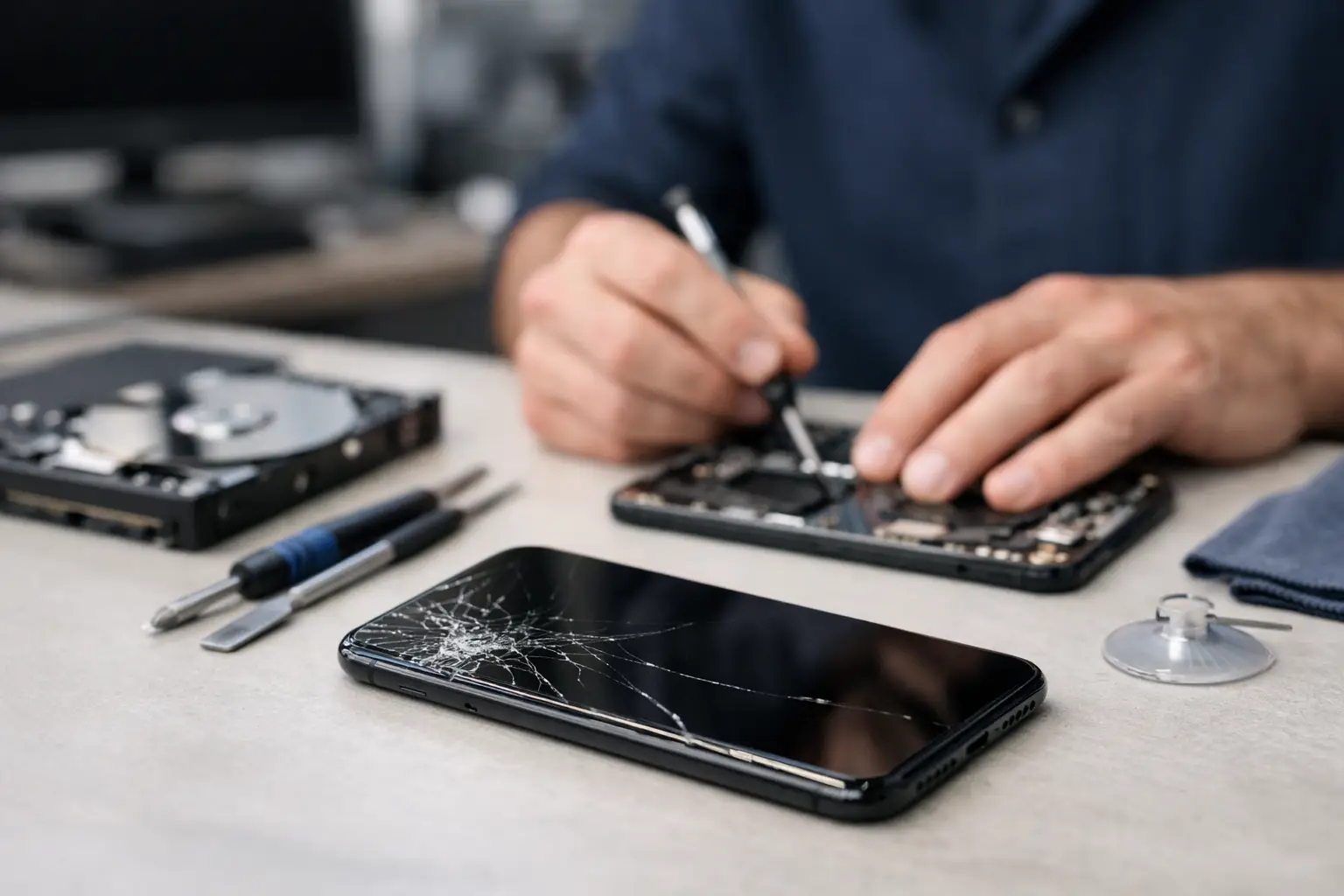
A cracked screen is stressful. A phone that will not charge, keeps restarting, or took a swim is worse. The question people ask before handing it over is simple: does repair erase data? Usually, no. Most hardware repairs do not require wiping your phone. But there are situations where data can be lost, especially when the problem involves software, storage, severe liquid damage, or a device that cannot stay powered on.
The safest rule is simple: back up your device before any repair when you can. If you cannot, tell the repair technician right away. That helps them choose the safest path and set realistic expectations.
Does repair erase data during common fixes?
A repair is not the same thing as a factory reset. Replacing a physical part normally leaves the data stored on your phone alone. Photos, messages, apps, contacts, and files are held in the device’s internal storage, not in the screen, battery, charging port, camera, or speaker.
For many everyday problems, your data should remain where it is. That includes repairs such as screen replacement, battery replacement, charging port repair, camera replacement, speaker repair, microphone repair, button repair, and back glass replacement.
Still, no repair shop can honestly promise that every device will leave exactly as it arrived. Phones can have hidden damage, weak storage chips, failing batteries, or corrosion that gets worse over time. A device may also need software troubleshooting after a hardware repair if it was already freezing, boot-looping, or acting unusually.
Screen repairs usually keep your data
A broken display can make a phone look dead even when it is still running. In most cases, replacing the screen does not erase anything. Once the new display is installed, your apps and information should appear as they did before.
The exception is a phone with deeper damage. A hard drop can damage more than the glass. If the phone will not power on, will not respond to touch, or has board-level damage, the repair may involve more testing. Your data may still be recoverable, but it is no longer a routine screen repair.
Battery and charging repairs usually keep your data
A worn battery does not store your photos or messages. Replacing it should not remove them. The same is generally true for a charging port repair.
However, a phone that shuts down randomly can create its own risk. If the device loses power during an update or its storage is already failing, it may not restart normally. That is another reason to back up before bringing it in if the phone can stay on long enough.
Software fixes can be different
Software problems are where the answer to “does repair erase data” becomes less certain. Some issues can be fixed without deleting anything. A technician may clear a stuck app, update the operating system, remove malware, free up storage, or troubleshoot settings while keeping your information intact.
Other problems may require a reset. If the operating system is badly corrupted, the device is locked in a restart loop, or a major update failed, a factory reset may be the only reliable way to get it working again. A reset removes personal data from the device unless it has been backed up elsewhere.
A good repair process starts with the least destructive option. If a reset becomes necessary, you should be told before it happens whenever the device condition allows.
When data loss is more likely
Some repairs come with more uncertainty than others. Water damage is a major example. Liquid can corrode connections and damage the board that holds your phone’s storage. A phone may work for a few hours, days, or weeks after getting wet, then suddenly stop turning on.
Physical damage can be just as serious. If a phone was crushed, bent, run over, or dropped hard, the internal storage or main board may be affected. In these cases, fixing a screen or battery might restore access, but there is no guarantee.
Data loss is also more likely when the phone is already showing warning signs: constant freezing, unexplained restarts, missing files, error messages, overheating, or a device that will not complete startup. Those symptoms can point to a deeper issue than a broken part.
The biggest risk is not always the repair itself. It is waiting too long to protect the data. If your phone is acting unstable but still turns on, back it up as soon as possible. Do not keep restarting it over and over, installing random repair apps, or charging a wet device in hopes that it will recover.
Back up before you bring your device in
If your phone is usable, take a few minutes to create a current backup. Cloud backup is often the easiest option, but a computer backup can be useful too, especially if you have a lot of photos or limited cloud storage.
Make sure the backup actually finishes. Check that recent photos, contacts, messages, and important files are included. If you use an authenticator app for work, banking, or social media, confirm you have recovery codes or a way to move that access to another device. Those apps can be harder to restore than regular photos or contacts.
Before service, it also helps to write down anything you cannot afford to lose, such as:
- Recent photos or videos that have not synced
- Important notes, voice memos, and downloaded documents
- Login details and recovery information for key accounts
- Contacts saved only to the phone instead of an account
- Files connected to work, school, or a small business
If the phone will not turn on, do not assume the data is gone. A screen, battery, charging issue, or power-related repair may bring the phone back long enough to make a backup. Let the technician know that your files are a priority before any work begins.
What a repair shop may need from you
A technician may ask you to unlock the device so they can test the screen, cameras, speakers, charging, calls, Wi-Fi, or other functions after a repair. That is normal, but you should understand why access is needed and what will be tested.
If you are uncomfortable sharing your passcode, ask whether you can enter it yourself during testing. You can also stay nearby while the device is checked when practical. For certain repairs, limited access may be enough. For others, full testing is the best way to make sure you do not leave with a second problem.
You may also need to turn off a device-tracking or activation-lock feature before service, especially if a device must be restored or replaced. Do not remove your account from the phone unless you understand the reason. If a repair does not require a reset or replacement, there may be no reason to sign out first.
Ask these questions before approving repair
You do not need technical language to protect your information. Ask whether the proposed repair is hardware-only, whether a reset may be needed, and whether the technician sees signs of water or board damage. Also ask what happens if the repair reveals a bigger issue.
For a simple screen or battery repair, the answer is often straightforward: your data should stay in place. For a phone with liquid damage, repeated restarts, or no power, the honest answer may be that data recovery depends on what is damaged inside.
A local repair shop should give you a clear explanation, not pressure you into a decision. At Excell Wireless VA, the goal is to identify the issue, explain the practical options, and help you decide what makes sense for your device and the information on it.
If your phone is already dead
Do not factory reset a phone just because it will not turn on. A reset is often impossible on a dead device anyway, and it can make recovery harder if it does become possible later. Avoid opening the phone yourself, especially after water exposure. Damaging a cable, battery, or board can turn a repairable issue into a more expensive one.
Bring the phone in with its charger if you have it, and explain what happened before it stopped working. Mention drops, water exposure, recent updates, charging trouble, overheating, and any messages that appeared on screen. Those details can save time and help protect your data.
Your device holds more than contacts and photos. It may hold your work, school files, banking access, family memories, and daily routine. Back it up when you can, ask direct questions before repair, and get help early when a problem starts getting worse.