Category: Uncategorized

  • Phone Repair Richmond: What to Do Before You Go

    Phone Repair Richmond: What to Do Before You Go

    Your phone does not pick a convenient time to stop working. A cracked screen can spread across the display before lunch. A charging problem can leave you at 3 percent when you need directions, a work login, or a call from school. When you need phone repair Richmond customers can access without a mail-in process, a few smart steps can protect your device and make the repair process faster.

    The goal is simple: avoid making the damage worse, save what you can, and get clear information about the repair before you commit. Some issues have an easy fix. Others need a technician to open the device, test parts, and pinpoint the real cause.

    Start With the Problem You Can See

    Begin by noticing exactly what changed. Did the phone fall? Get wet? Stop charging after a software update? Is the screen broken but the phone still rings and vibrates? Details like these help separate a screen-only repair from a deeper issue with the battery, charging port, camera, motherboard, or software.

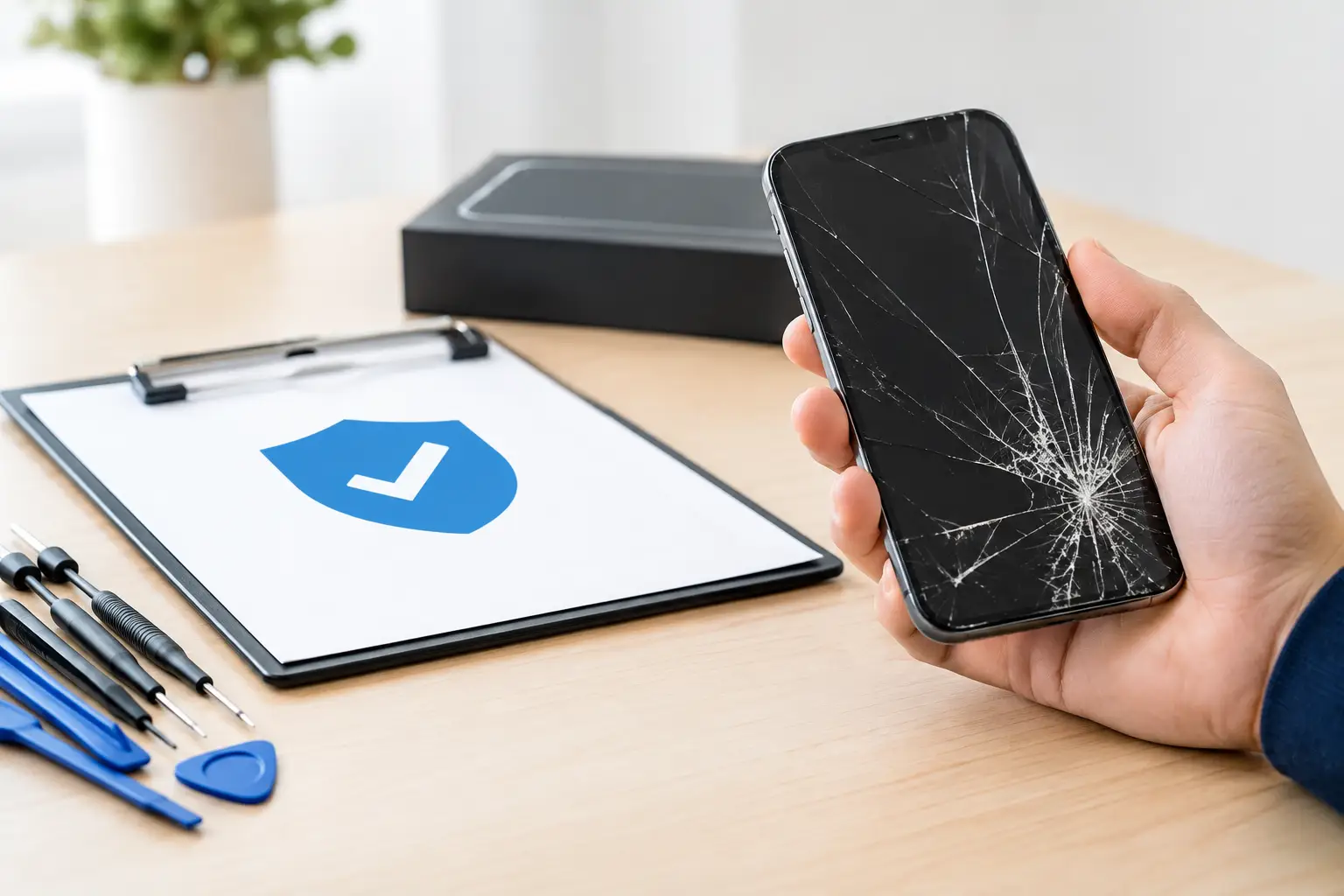
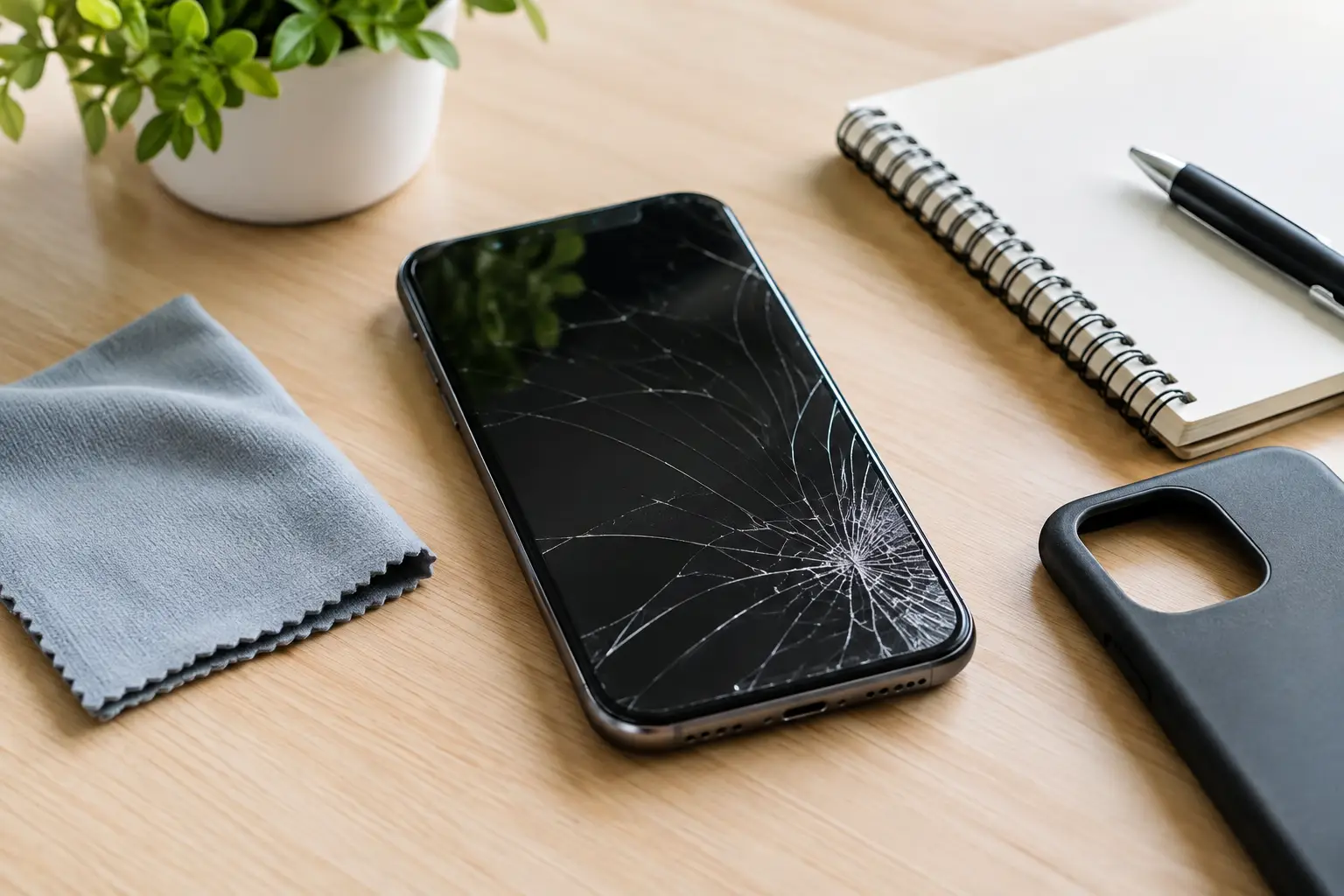
    A screen with one crack may still work for a while, but do not assume it is only cosmetic. Cracks can weaken the glass, let in moisture and debris, and create sharp edges. If the display has black spots, colored lines, flickering, dead areas, or touch problems, the screen assembly may be damaged beyond the outer glass.

    If your phone turns on but will not respond to touch, try a forced restart based on your model. If it comes back normally, keep an eye on it. If the issue returns or parts of the screen remain unresponsive, stop pressing hard on the display. Pressure can worsen internal damage.

    Do Not Keep Charging a Wet or Hot Phone

    Water damage needs a different response than a broken screen. If your phone was dropped in water, exposed to heavy rain, or had a drink spilled on it, turn it off as soon as possible. Remove the case and disconnect any charger or accessory. Do not keep testing it, and do not plug it in to see whether it still charges.

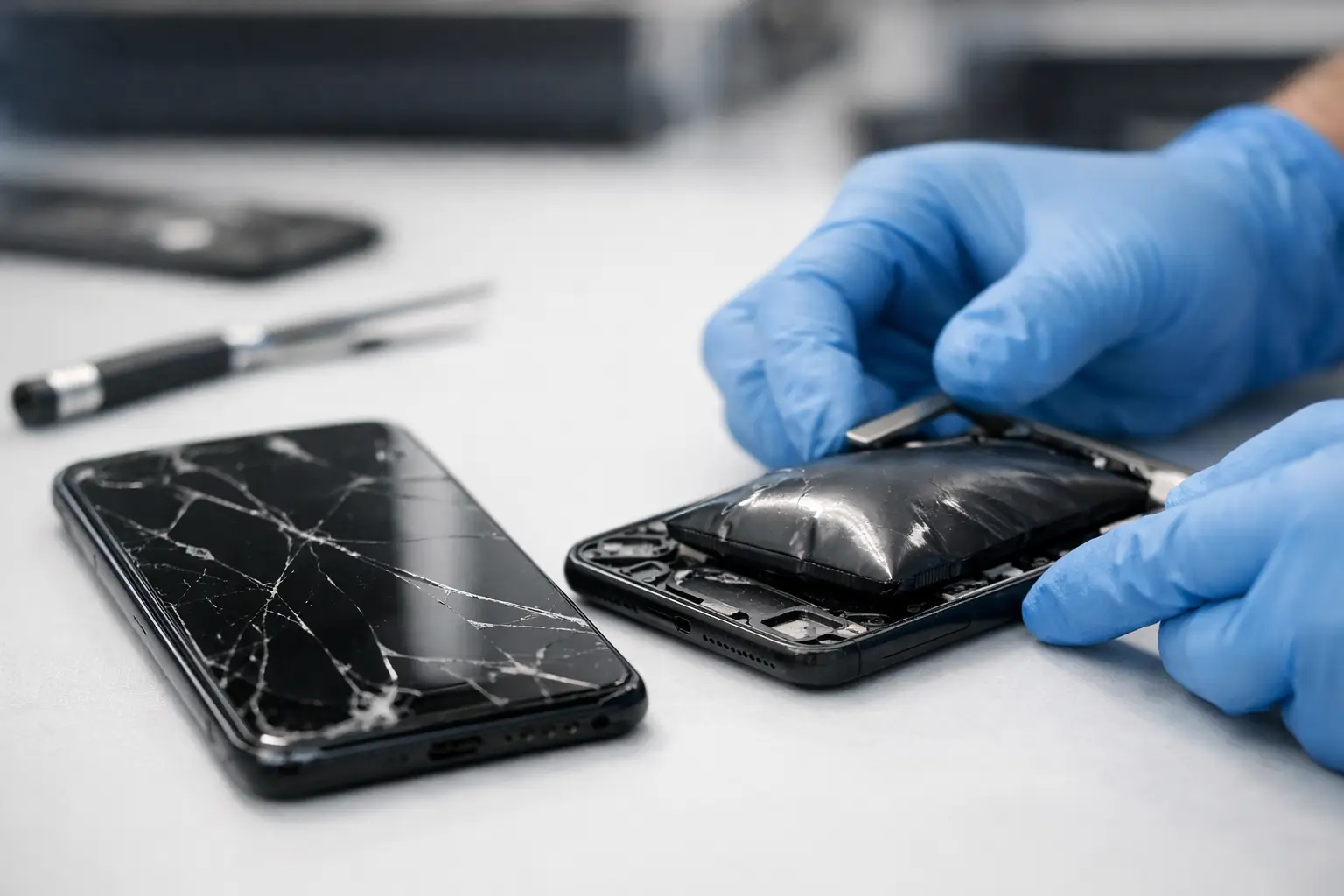
    Heat is another warning sign. A phone that becomes unusually hot during charging, drains quickly, swells, smells strange, or pushes the screen away from the frame should not be used normally. A swollen battery is a safety issue, not something to press back into place or ignore until the weekend.

    Skip the rice. It does not remove moisture from inside the phone, and loose particles can create another problem in the charging port or speakers. The best next step is to get the device checked quickly. Corrosion can continue after the outside feels dry.

    Charging Problems Are Not Always a Bad Battery

    A phone that will not charge can be frustrating because the cause is not always obvious. The cable, wall adapter, outlet, charging port, battery, or internal charging system could be responsible. Start with a known-good cable and adapter. Check the port under good light for lint or debris. Pocket lint can pack tightly into the bottom of the port and prevent the cable from seating correctly.

    Do not dig aggressively with metal tools or force the connector. That can damage the pins inside the port. If your phone only charges when the cable is held at a certain angle, disconnects repeatedly, or will not charge with equipment that works on another device, it is time for a closer inspection.

    Battery health also matters. Older batteries may drain fast, shut down at a percentage that looks normal, or struggle in cold weather. A battery replacement can make sense when the rest of the phone is in good condition. But if the device also has major screen damage, storage limitations, and software support problems, compare the repair cost with the value you will get from keeping it.

    Back Up Data Before a Repair When You Can

    Your photos, messages, contacts, banking apps, and work files may matter more than the phone itself. If the device still powers on and you can unlock it, create a current backup before bringing it in. Use the backup method already connected to your phone, whether that is cloud storage or a computer.

    Do not delay a needed repair just to complete a backup if the phone is wet, overheating, swelling, or failing to stay on. In those cases, continued use can put your data at greater risk. Tell the technician what matters most, especially if you need help recovering access to a phone with a failed display or power issue.

    Before service, know your passcode if the repair requires device testing. You should also remove any personal accessories such as cases, card holders, and removable memory cards. If you use device tracking or activation protection, ask what needs to stay enabled and what may need to be disabled for testing. The right answer depends on the device and the repair.

    What a Phone Repair Shop Needs to Know

    Fast, accurate service starts with a clear description. You do not need technical language. Explain what happened, when it happened, what the phone does now, and anything you have already tried. Mention whether the device has had previous repairs or water exposure, even if the current problem seems unrelated.

    A useful repair quote is based on the actual model and the actual issue. “My Samsung is broken” or “my iPhone will not work” is a starting point, but the model name, storage version, and symptoms can affect part availability and pricing. If you are unsure which model you have, check the settings menu if the phone is usable, look at the original box, or bring the device to the shop for identification.

    At Excell Wireless VA, the approach is straightforward: describe the problem, get service guidance, and bring the device in for a closer look when needed. Independent repair service is especially useful when you want local help with more than one brand or device type rather than being limited to a manufacturer channel.

    Phone Repair Richmond Customers Should Ask About

    A good repair conversation should give you practical answers, not vague promises. Ask what part is likely affected, whether the issue can be confirmed before work begins, and whether there are signs of additional damage. It is also reasonable to ask about the expected timeframe, the repair cost, and what warranty or support applies to the work.

    There are trade-offs with any repair. A basic screen replacement may be an easy decision on a newer phone with plenty of life left. A charging issue may be worth fixing when the phone otherwise works well. On the other hand, a device with multiple major problems may not be the best place to put more money, particularly if it is already slow, no longer receives useful software updates, or has limited storage.

    The technician should help you understand those choices. Repair is not always the answer, but replacing a device is not automatically the better answer either. A local inspection can keep you from guessing based on symptoms alone.

    Get Ready for Your Visit

    If your phone works, write down the issue before you leave home. Intermittent problems have a way of disappearing when you try to demonstrate them. Note whether the problem occurs during charging, calls, camera use, gaming, or after the phone has been sitting unused. Screenshots of error messages can help too.

    Bring the phone and, if charging is part of the issue, bring the cable and adapter you normally use. That gives the technician a better picture of what is happening. If you need the phone for work, school, family coordination, or two-factor authentication, say so early. Your timeline matters when deciding the next step.

    A damaged phone is disruptive, but you do not have to diagnose every part yourself. Protect it from further damage, share the details you know, and get a clear quote. The sooner you deal with a failing screen, battery, charging port, or power issue, the sooner your phone can get back to doing the job you rely on it for.

  • Device Troubleshooting in Richmond: Start Here

    Device Troubleshooting in Richmond: Start Here

    Your phone dies at 2% even after charging all night. Your tablet will not connect to Wi-Fi before a deadline. Your laptop powers on but the screen stays black. When a device stops doing the job you rely on it to do, you need a clear next step, not a long runaround.

    For device troubleshooting Richmond customers can count on, start with a few safe checks. They can rule out simple problems without risking your data or causing more damage. If those checks do not solve it, a local repair shop can help identify whether the issue is the battery, charging port, screen, software, board, or something else.

    Start With the Problem You Can See

    Before changing settings or downloading apps, pay attention to what changed. Did the device fall? Get wet? Start acting up after an update? Is it only failing with one charger, one app, or one location?

    A good description saves time. “My phone will not charge” is a start. “My phone only charges when the cable is held at an angle, and it began after it fell from my desk” gives a technician much more to work with.

    Also notice whether the issue is constant or comes and goes. A screen that flickers only when the phone is moved may point to a loose connection or damaged display. A phone that restarts during video calls may be dealing with heat, battery health, or software trouble. The symptoms matter.

    Check Power and Charging Safely

    Many devices that appear dead have a charging problem, not a total power failure. Try a known-working wall outlet, cable, and charging block if you have them. Avoid testing with a damaged cable, loose adapter, or off-brand charger that gets unusually hot.

    Look into the charging port with good lighting. Pocket lint can keep a cable from making a solid connection. Do not use a pin, knife, or metal tool to dig inside the port. That can bend contacts and turn a cleaning issue into a repair. If debris is packed in or the cable still feels loose, bring it in.

    Leave a fully drained device on a reliable charger for at least 20 to 30 minutes before deciding it will not power on. Then try a standard restart. The exact button combination depends on the device, but a forced restart can sometimes clear a frozen screen or failed app without deleting your information.

    If the device becomes hot, smells strange, has a swollen back cover, or shows a bulging battery, unplug it. Do not press on the screen or keep charging it. Battery swelling is a safety issue and needs professional attention.

    When the Charger Is Not the Real Problem

    A device may show a charging symbol while the battery percentage barely moves. That can happen when the battery is worn out, the charging port is damaged, the cable is not delivering enough power, or an app is using power faster than the charger can replace it.

    Try charging with the device powered off. If it gains power normally while off but drains quickly while on, battery condition or heavy background activity may be part of the problem. If it will not charge either way, the port, battery, or internal charging system may need to be checked.

    Rule Out Simple Screen and Sound Issues

    A black screen does not always mean the device is off. Call the phone from another line. Listen for vibrations, notification sounds, or ringing. If it responds but the display stays dark, the screen or display connection may be the issue.

    For tablets and laptops, look for indicator lights, fan noise, or keyboard backlighting. Connect to an external display only if you already have the right cable and know how to do it safely. An external picture can help confirm whether the main device is running while the built-in display has failed.

    If you cannot hear calls, check volume levels, Bluetooth connections, and whether the device is sending audio to earbuds, a vehicle, or another paired accessory. If the speaker sounds crackly after water exposure or a drop, stop trying to force sound through it at high volume. Physical damage will not improve with a setting change.

    Treat Water Damage Like an Urgent Repair

    Water and electronics do not mix, even when a device has a water-resistance rating. Those ratings can weaken after age, drops, heat, or previous repair work. A quick splash may be fine, but charging a wet device can cause corrosion or a short.

    If your phone, tablet, smartwatch, or other device gets wet, power it down if possible. Remove the case and disconnect chargers or accessories. Gently dry the outside with a clean cloth. Do not use a hair dryer, oven, microwave, or compressed air. Heat and pressure can push moisture farther inside or damage components.

    Skip the rice, too. It does not remove moisture from inside the device effectively, and dust or starch can get into ports. The best move is to get the device inspected as soon as you can, especially if it is not powering on, the screen is acting strange, or the charging port was exposed.

    Handle Software Problems Without Making Them Worse

    Slow performance, random pop-ups, frozen apps, storage warnings, and connection problems can be software-related. Start small. Close the affected app, restart the device, and check whether the operating system and app updates are complete.

    Storage matters more than many people realize. When a phone or tablet is nearly full, it can slow down, fail to update, or have trouble taking photos and receiving messages. Delete files you no longer need or move photos and documents to a backup location you trust.

    Be careful with factory resets. A reset can solve certain software issues, but it also removes local data unless it is backed up. Do not reset a device just because it is slow or one app is misbehaving. First make sure you know the account password, backup status, and whether the problem continues after a normal restart.

    If the device has unknown apps, constant ads, unusual battery drain, or suspicious account alerts, change important passwords from another trusted device. Banking, email, and cloud storage accounts should come first. Then get help checking the affected device before entering sensitive information on it again.

    Know When to Stop Troubleshooting at Home

    There is a point where more testing creates more risk. Stop and seek repair help when you see cracked glass exposing sharp edges, a bent frame, swelling, liquid exposure, a burning smell, repeated restart loops, or a device that will not power on after safe charging checks.

    The same applies when you need the data on the device. Repeated resets, unofficial software tools, and random online fixes can make recovery harder. If your photos, work files, messages, or business information matter, say that up front when you request service.

    A repair diagnosis can also prevent wasted money. A cheap replacement cable makes sense when the cable is the problem. It does not make sense to keep buying accessories when the port is loose, the battery is failing, or the device has internal damage.

    What to Bring to a Repair Shop

    Bring the device, the charger or accessory involved if it may be part of the issue, and any passcode or account details needed for testing. If you are not comfortable sharing a passcode, ask what testing can be done without it. Some issues can be confirmed without access, while software and function testing may require it.

    Tell the technician about drops, water exposure, previous repairs, error messages, and what you have already tried. Be direct about what matters most: getting the device working today, saving data, replacing a screen, fixing charging, or deciding whether repair is worth it.

    Excell Wireless VA handles a wide range of personal electronics with a practical approach: any device, any issue. A quote request or quick call can help you find out what to bring and what the next step looks like.

    When your device is acting up, do the safe basics once, protect your data, and do not keep forcing a problem that needs hands-on repair. Getting the right diagnosis early is usually faster than guessing.

  • Top Signs Your Phone Needs Repair Right Now

    Top Signs Your Phone Needs Repair Right Now

    A phone problem rarely starts with a dramatic failure. It starts when you have to hold the charging cable at a certain angle, restart the device before an important call, or ignore a crack that keeps spreading across the screen. Those are the top signs your phone needs repair – and waiting can turn a manageable fix into a bigger interruption to your work, school, banking, and daily routine.

    A cracked screen is more than a cosmetic problem

    A small crack may seem harmless if the screen still lights up and responds to touch. But cracked glass weakens the whole display. Each drop, bump, or trip into a pocket or bag can cause the damage to spread. Sharp edges can also cut your finger, while gaps in the glass give moisture and dust a path toward the phone’s internal components.

    If you see black spots, colored lines, flickering, dead areas that no longer respond to touch, or glass lifting from the frame, the issue has likely moved beyond the outer screen. A screen repair is worth considering before the display goes completely dark or the phone becomes difficult to use.

    Your battery drains much faster than it used to

    Every battery loses capacity over time, but a noticeable change deserves attention. If your phone used to last all day and now needs charging by lunchtime, the battery may be worn down. The same is true when the battery percentage falls suddenly, such as dropping from 35% to 10% in a few minutes.

    Heat is another warning sign. Phones can get warm while charging, gaming, streaming, or using navigation. They should not become uncomfortably hot during normal use. Repeated overheating can point to a failing battery, a charging issue, an app problem, or internal damage. Stop using the phone and get it checked if it gets hot enough to be painful to hold, smells unusual, or shows any sign of swelling.

    A swollen battery needs prompt attention. You may notice the screen or back panel separating from the phone frame, a new gap around the edges, or a device that no longer sits flat on a table. Do not press the phone back together or continue charging it. A damaged battery can be a safety concern.

    Charging takes too long or only works sometimes

    Before assuming the phone needs repair, test a different wall outlet, charging brick, and cable. Cables fail often, and an inexpensive replacement may solve the problem. If several known-good chargers still work only when positioned a certain way, the charging port could be clogged, loose, worn, or damaged.

    Pocket lint is a common cause. It packs into the bottom of the port and prevents the cable from connecting fully. Avoid digging inside with metal tools, which can damage the contacts. If careful cleaning does not restore a firm connection, a technician can inspect the port and determine whether it needs cleaning, repair, or replacement.

    Wireless charging can add a useful clue. When wireless charging works but wired charging does not, the problem may be limited to the cable, port, or charging circuit. When neither method works, the diagnosis may involve the battery, software, or internal power components.

    Your phone restarts, freezes, or will not turn on

    A random restart once in a while may be a software glitch. Regular crashes are different. If the phone freezes during simple tasks, reboots without warning, gets stuck on the startup logo, or shuts down even with battery remaining, it is time to investigate.

    Start with the basics: update the operating system, remove recently installed apps you do not trust, free up storage space, and restart the device. Back up important photos, messages, and files as soon as you can. If the behavior continues after basic troubleshooting, there could be a battery issue, corrupted software, water damage, or a problem with internal hardware.

    A phone that will not power on at all is not always beyond repair. It may have a failed battery, damaged charging port, broken screen that makes the phone appear dead, or a board-level issue. An in-person inspection can separate a simple repair from a more involved one.

    Water exposure can cause problems days later

    Dropped your phone in a sink, pool, rainstorm, or cup of coffee? Even phones marketed as water-resistant are not waterproof forever. Aging seals, cracks, prior repairs, and the force of the water can all affect how well a device holds up.

    Turn the phone off if possible, disconnect any charger, and do not try to charge it to see whether it still works. Do not use a hair dryer or put it in rice. Heat can push moisture deeper into the device, and rice does not remove corrosion from internal parts. The best move is to have the phone inspected quickly, especially if the screen flickers, cameras look foggy, sound becomes muffled, or the phone begins restarting after exposure.

    Calls, cameras, and sound stop working normally

    A phone can look fine and still have a hardware problem. People may report that they cannot hear you well on calls. Your voice recordings may sound distant or distorted. The speaker may crackle, Bluetooth may disconnect repeatedly, or the camera may refuse to focus after a drop.

    Test these features with more than one app and after restarting the phone. Check that cases, screen protectors, and debris are not blocking the microphone, earpiece, or camera lens. If the issue remains, it may be a damaged microphone, speaker, camera module, antenna, or connection inside the phone.

    These problems are especially disruptive for small business owners, parents coordinating schedules, and anyone using a phone for work. You should not have to put calls on speaker or rely on another device because yours cannot be heard clearly.

    Touch problems and ghost touches are top signs your phone needs repair

    When a screen taps buttons by itself, opens apps without being touched, or ignores swipes in one area, the display digitizer may be failing. This often follows a drop, moisture exposure, or pressure damage. A cracked screen is not required for touch problems to appear.

    Remove the case and screen protector first. Restart the phone and check for software updates. If the issue continues, avoid entering passwords or handling sensitive banking information until it is resolved. Ghost touches can send messages, delete information, and make the device difficult to secure.

    You are running out of storage despite deleting files

    Storage warnings are not always a repair issue. Photos, downloaded videos, old messages, and large apps can fill a phone quickly. Review storage settings, clear unneeded downloads, and back up files before deciding anything is broken.

    But if storage appears wrong, the phone will not complete updates, apps crash even with plenty of available space, or the device gets slower after you have cleared it out, software troubleshooting may be needed. A repair shop can help identify whether the problem is related to system software, failing storage hardware, or a battery that is slowing performance.

    When to stop troubleshooting at home

    Simple checks can save time, but there is a point where repeated resets and online fixes create more risk than value. Get professional help when the phone has been dropped hard, exposed to liquid, overheats, swells, will not charge reliably, or contains data you cannot afford to lose. If the device is still under a manufacturer warranty or insurance plan, review those options too. Independent repair can still be a practical choice when you need a local diagnosis, a multi-brand solution, or a faster path than shipping your phone away.

    For Richmond residents, Excell Wireless VA can inspect the problem and provide service guidance for many device issues. Bring the phone in or request a quote with the model and symptoms you are seeing. The sooner you address a warning sign, the better chance you have of keeping a small repair from becoming a phone you cannot use.

  • Fast Local Repair Turnaround When It Matters

    Fast Local Repair Turnaround When It Matters

    A cracked screen is frustrating. A phone that will not charge, power on, connect to Wi-Fi, or hold a signal can stop your whole day. When you need fast local repair turnaround, you are not looking for a complicated process or a shipping label. You need someone nearby who can look at the problem, explain the options, and help get your device back in your hands.

    For Richmond customers, speed is more than getting a repair done quickly. It means getting a clear answer quickly. Some issues can be handled the same day. Others need parts, testing, or more time to diagnose. The right repair shop will tell you which situation you are dealing with before you waste time guessing.

    What Fast Local Repair Turnaround Really Means

    Fast repair does not mean rushing through a device without checking the real cause of the problem. It means removing unnecessary delays. You should be able to call, request a quote, describe the issue, and find out what the next step looks like without being passed through a long support system.

    A local repair shop can often move faster than a mail-in program because the device stays close to you. There is no waiting for shipping, no tracking package, and no wondering when someone will finally inspect it. You bring the device in, a technician checks the issue, and you get practical service guidance.

    Turnaround depends on the device, the damage, and whether the needed part is available. A common screen repair may move much faster than a device with liquid damage or an intermittent motherboard issue. That is not bad news. It is an honest answer, and it helps you make a better decision.

    Start With the Problem You Can See

    Customers often come in saying, “My phone is broken.” That is enough to start, but a few details can speed up the process. Say what changed, when it started, and what the device does now. If it was dropped, got wet, stopped charging after a software update, or only works at certain angles, mention that.

    For example, a phone that will not charge may have a worn cable, debris in the charging port, battery trouble, or internal damage. Those are different fixes. Bringing the phone in for inspection is much better than ordering a random part online and hoping it solves the issue.

    If your screen is cracked but the display and touch function still work, the repair path may be straightforward. If the screen is black, flickering, showing colored lines, or not responding to touch, the damage may go beyond the outer glass. Clear details help the technician check the right areas first.

    When Same-Day Repair Is Realistic

    Some repairs are commonly completed quickly when the shop has the part and the device has no hidden damage. Screen replacements, battery replacements, charging-port cleaning, speaker issues, and certain camera repairs can often fall into this category.

    Still, same-day service depends on more than the repair type. Device model matters. A recent or less common model may require a part that is not immediately available. The condition of the device matters too. A phone with a cracked screen may also have frame damage, a weak battery, or an issue that only appears after testing.

    The best approach is simple: ask for a quote and expected timing before you make the trip. A good shop should not promise a repair window without knowing what device you have and what is actually wrong with it.

    Repairs That May Need More Time

    Water damage, repeated restarting, no-power issues, software failures, data concerns, and board-level problems often need a slower diagnosis. That does not mean the device cannot be repaired. It means the shop needs to identify the source before recommending a fix.

    Liquid damage is a good example. A device may appear normal right after getting wet, then fail later as corrosion spreads. Turning it on, plugging it in, or repeatedly trying to charge it can make the damage worse. Bring it in as soon as possible and explain what happened. Fast action gives the device a better chance.

    Software problems can also be misleading. A frozen phone may be caused by storage issues, a failed update, an app conflict, or hardware trouble that looks like a software problem. Diagnosis prevents you from paying for the wrong repair.

    Local Service Gives You a Better Next Step

    Manufacturer support can work for certain warranty situations, but it is not always the fastest choice. You may need an appointment, a mail-in claim, proof of purchase, or a wait for an authorized service location. If your phone is your work line, your map, your payment app, and your connection to family, that wait can be a real problem.

    An independent local repair provider gives you another option. You can speak to a person, bring in different brands and device types, and get help based on the condition of your device rather than a one-size-fits-all process.

    That matters for families with several devices, students who need a phone for class, small business owners who cannot miss customer calls, and anyone whose day runs through a screen. The goal is not to make the repair process sound complicated. The goal is to make it easier to move forward.

    How to Avoid Delays Before You Visit

    You do not need to do much preparation, but a few steps can protect your information and help the repair go more smoothly. If the device still turns on, back up important photos, contacts, messages, and files. Remove cases, accessories, and personal items attached to the device.

    If you know your passcode, keep it available. Some repairs require testing cameras, speakers, touch response, charging, and wireless connections after the work is done. You may be asked to enter the passcode yourself or provide access only when needed for testing.

    Do not keep using a phone with a swollen battery, a hot charging area, exposed internal components, or signs of water damage. Power it down when possible and bring it in. Safety comes before speed.

    Ask the Questions That Save Time

    A fast repair experience starts with a direct conversation. Tell the shop your device model, the issue, and whether the damage happened recently. Then ask whether the problem can be diagnosed in-store, whether a part may need to be ordered, and what the expected turnaround looks like.

    You should also ask what is included in the quote. A clear quote helps you compare repair cost with replacement cost. For an older device with several problems, replacement may make more sense. For a newer phone with a broken screen or failing battery, repair can be the practical move.

    Price matters, but the lowest number is not always the best value. A repair should address the actual issue, use appropriate parts, and include testing before you leave. Paying for a quick fix that does not last is not a fast solution.

    Get Help Before a Small Issue Gets Bigger

    A weak charging port, cracked screen, fading battery, or loose back cover can become a bigger repair if it is ignored. Cracks allow moisture and dust inside. A damaged port can strain cables and chargers. A failing battery can leave you without a working phone at the worst possible time.

    If something is not working right, get an answer early. Excell Wireless VA helps Richmond customers with practical troubleshooting and repair support for a wide range of devices and issues. Call, request a quote with the details, or visit the shop when you need a real person to take a look.

    Your device does not have to be completely dead before you ask for help. A quick inspection today can keep a small problem from taking over your week.

  • Complete Phone Diagnostic Guide for Common Problems

    Complete Phone Diagnostic Guide for Common Problems

    Your phone does not have to be completely dead to need attention. A charger that only works at one angle, a battery that drops from 40% to 5%, or a screen that misses taps can all point to a real problem. This complete phone diagnostic guide helps you narrow down what is happening before you spend time on the wrong fix.

    Start simple. Many phone problems come from accessories, settings, storage space, or a recent update. Others are signs of damage that need hands-on repair. The goal is not to take your phone apart at home. It is to identify the issue clearly, protect your data, and know when it is time to bring it in.

    Start With the Basics Before Assuming the Worst

    Before testing individual parts, remove the phone case and disconnect any accessories. A thick or damaged case can interfere with buttons, wireless charging, cameras, and heat release. If the phone is hot, let it cool down before charging or running more tests.

    Check these basics first:

    • Restart the phone. A restart clears many temporary software glitches.
    • Try a known-good charging cable, wall adapter, and outlet.
    • Check available storage. A nearly full phone can freeze, crash, and fail to update.
    • Look for recent drops, water exposure, repairs, or software updates.
    • Back up important photos, messages, and work files if the phone still turns on.

    Write down when the problem started and what changed before it happened. For example, if charging stopped after the phone fell in the car, that detail matters. If the battery began draining right after a new app was installed, the cause may be different.

    Complete Phone Diagnostic Guide: Check Each System

    A phone is a group of connected systems. A charging issue can look like a battery issue. A black screen can be a display problem, a software crash, or a phone that has lost power. Test one area at a time so you do not make assumptions.

    Charging Port and Power Problems

    If the phone will not charge, inspect the cable and adapter first. Try another set that you know works with a different device. Then check the charging port using a bright light. Pocket lint can pack tightly into the bottom of the port and prevent the cable from connecting fully.

    Do not use metal tools, liquids, or excessive force inside the port. That can damage the charging pins. If you can see debris, it is safer to have the port cleaned professionally.

    Notice how the cable fits. Does it feel loose? Does charging start and stop when the cord moves? Does the phone charge wirelessly but not with a cable? Those signs can point to a dirty, worn, or damaged port. If the phone shows a moisture warning, stop charging it by cable and allow it to dry fully. Repeatedly overriding a moisture warning can create more damage.

    If the phone has no response at all, leave it connected to a working charger for at least 20 to 30 minutes, then try a forced restart. The button combination varies by model, so use the correct method for your device. A phone that stays cold, silent, and unresponsive after this test may have a battery, port, charging circuit, or board-level issue.

    Battery Drain, Overheating, and Random Shutdowns

    Fast battery drain is not always a bad battery. First, check battery usage in your phone settings. Look for an app using an unusually large amount of power, especially when you are not actively using it. Location services, weak cellular signal, high screen brightness, background refresh, and constant video streaming can also drain power quickly.

    A useful test is to charge the phone fully, use it normally for several hours, and watch whether the percentage drops in a predictable way. If it falls suddenly, shuts off while showing charge remaining, or only works while plugged in, the battery may be worn or failing.

    Heat needs more caution. Phones can get warm during gaming, navigation, charging, or video calls. That is normal for short periods. A phone that becomes very hot while sitting idle, during light use, or every time it charges needs attention. Remove the case, stop charging, and power it down if necessary.

    Never press on a swollen battery or keep using a phone with a lifting screen, separated back cover, chemical smell, or unusual heat. Those can be signs of battery swelling. Do not puncture the device or try to flatten it. Bring it to a repair professional as soon as possible.

    Screen, Touch, and Display Issues

    A cracked screen is easy to spot, but display damage is not always obvious. Look for black spots, colored lines, flickering, ghost touches, dim areas, or a screen that stays black while the phone still vibrates or rings. These symptoms often mean the display itself has been damaged, even if the outer glass looks mostly intact.

    Clean the screen with a soft, dry microfiber cloth and remove any damaged screen protector. A thick, chipped, or poorly fitted protector can affect touch response. Then test touch in several areas by opening an app and tapping around the edges, center, keyboard, and navigation controls.

    If touch works only in certain spots, apps close on their own, or the phone types without being touched, a restart is worth trying. If the issue remains after restarting, it is more likely a screen or internal connection problem. Avoid using a cracked screen in wet conditions, since moisture can enter through damaged glass.

    Camera, Speaker, Microphone, and Button Tests

    Open both the front and rear cameras. Test photos, video, flash, focus, and zoom if your phone has it. A blurry lens may simply need cleaning, but repeated shaking, clicking, inability to focus, or a black camera view can indicate hardware damage.

    For sound, play a song or video at normal volume. Then make a phone call and test both the earpiece and speakerphone. Record a short voice memo and play it back to check the microphone. If people can only hear you on speakerphone, or your recordings sound muffled, clean visible debris from the microphone openings carefully with a dry soft brush. Do not spray cleaner into the device.

    Test the volume buttons, power button, fingerprint reader, Face ID or other facial recognition feature, vibration, and charging indicator. One failed feature may be isolated. Several failed features after a drop or water exposure can point to internal damage.

    Software, Storage, and Connection Problems

    When the phone is slow, freezes, loses Wi-Fi, or apps keep crashing, start with software checks. Install available system and app updates, but only after you have enough storage and a backup. An interrupted update can make an existing problem worse.

    Delete apps you no longer use, clear large downloads, and restart the phone. If one app is the problem, update it, force-close it, or reinstall it. If the entire phone is acting up, check storage first. Devices with very little free space often struggle with basic tasks.

    For Wi-Fi and Bluetooth issues, test another network or accessory. If no device can connect to your phone by Bluetooth, and restarting does not help, reset network settings if you know your Wi-Fi passwords. This can fix saved connection errors, but it will remove stored networks and Bluetooth pairings.

    A factory reset is a last-step software test, not a first move. It erases your phone and does not repair a broken port, failing battery, or damaged screen. Only consider it after backing up your data and ruling out obvious hardware trouble.

    When to Stop Testing and Get Repair Help

    At-home checks are useful, but there is a point where more testing can cause more trouble. Stop and get help if the phone has a swollen battery, gets dangerously hot, shows water damage, has exposed glass or sharp edges, will not power on, or has important data you cannot risk losing.

    You should also bring the device in when charging only works at an angle, the screen has lines or black spots, the phone repeatedly restarts, or the camera, microphone, and speaker fail after a drop. These problems often need a physical inspection, not another app download.

    For Richmond customers, Excell Wireless VA can inspect phones across major brands and help determine whether the issue is a practical repair or a sign it is time to consider replacement. Bring the device, its charger if charging is the concern, and a clear description of what you noticed.

    A good diagnosis saves time and avoids unnecessary repairs. Start with the safe checks, protect your information, and trust the warning signs. If the problem keeps coming back, getting a clear answer from a local repair shop is better than living with a phone you cannot rely on.

  • Consumer Electronics Repair Guide for Common Issues

    Consumer Electronics Repair Guide for Common Issues

    A cracked phone screen is obvious. A phone that only charges at a certain angle, a tablet that keeps restarting, or earbuds that suddenly will not pair are harder to judge. This consumer electronics repair guide helps you take the right first step without wasting time, risking your data, or making a small problem worse.

    For most people, the goal is simple: get the device working again as quickly and affordably as possible. Sometimes that means a careful cleaning or a settings check. Other times, it means putting the device down and bringing it to a local repair shop before the damage spreads.

    Start With the Problem, Not the Guess

    Do not assume every charging issue needs a new battery or every dark screen means the display has failed. Look at what happened right before the problem started. Did the device fall? Get wet? Install an update? Start overheating? Was a new charger, case, cable, or app involved?

    That quick timeline gives you useful information. A phone that stopped charging after a drop may have port damage. A device that drains quickly after a software update may need troubleshooting before any hardware repair. A screen with colored lines after impact usually points to display damage, even if the glass itself looks mostly intact.

    Before changing settings or taking the device apart, test the easy variables. Try a known-good charging cable and wall adapter. Remove a bulky case that may block a connector or trap heat. Restart the device. For wireless accessories, check battery levels and forget then reconnect the pairing. These steps are simple, but they separate a device fault from an accessory problem.

    Consumer Electronics Repair Guide: Know When to Stop

    A little troubleshooting is reasonable. Improvised repair is not always the bargain it looks like. Modern phones, tablets, game systems, smartwatches, and laptops contain tightly packed batteries, delicate cables, adhesives, and components that can be damaged by the wrong tool or too much force.

    Stop using the device and seek repair help right away if you notice any of these warning signs:

    • The battery is swollen, the screen is lifting, or the device will not sit flat.
    • The device gets unusually hot while charging or during light use.
    • There is a burning smell, smoke, discoloration, or visible corrosion.
    • The device was exposed to water and will not power on or charge normally.
    • The charging port feels loose, sparks, or requires pressure to work.

    A swollen battery is not a cosmetic issue. Do not press the screen back into place, puncture the battery, or keep charging the device. Water damage also needs a fast response. Turn the device off if possible, disconnect it from power, and avoid repeatedly trying to turn it on. Heat and electrical current can turn a recoverable issue into corrosion or board damage.

    What You Can Safely Check at Home

    Some problems have straightforward causes. If a phone says it is charging but the battery percentage barely moves, inspect the cable and adapter first. Cables fail often, especially near the ends. Use a charger with the appropriate power rating rather than a damaged, bargain-bin adapter that runs hot or disconnects randomly.

    A charging port can also collect pocket lint. If the cable will not click firmly into place, debris may be blocking the connection. Power the device off and use a dry, nonmetal tool with a very light touch. Do not force anything into the port, spray liquid inside it, or scrape the contacts with a pin. A damaged charging port often needs more than cleaning.

    For slow or frozen devices, make sure storage is not completely full. Remove apps you no longer use, restart the device, and install pending system updates if the device is stable enough to do so. If an app crashes only after you open it, the app may be the issue. If the entire device freezes, reboots, or shows errors across multiple apps, the cause could be software, battery health, or internal hardware.

    Audio problems deserve a basic check too. Confirm Bluetooth is off when testing the phone speaker, since audio may be routing to another device. Remove any case or screen protector that blocks the microphone opening. If callers cannot hear you but voice recordings are clear, the issue may be network-related rather than a broken microphone.

    Common Device Problems and What They Usually Mean

    Cracked glass, black spots, and touch problems

    A cracked screen can remain usable for a while, but cracks allow moisture and debris closer to the display. Black spots, flashing, dead areas, colored lines, or unreliable touch response are stronger signs that the display assembly has been damaged. A screen protector can cover sharp edges temporarily, but it cannot restore a failing display.

    Battery drain and unexpected shutdowns

    Battery drain depends on device age, signal strength, screen brightness, background apps, and usage. If the battery suddenly drops from 30 percent to zero, shuts down in cool weather, or needs constant charging, the battery may be worn out. A replacement can be a practical fix when the rest of the device is in good condition. If the device also overheats, restarts, or has water damage, it needs a fuller diagnosis.

    Charging failures

    Charging trouble can come from the cable, adapter, outlet, port, battery, charging circuit, or software. That is why replacing parts based on one symptom is risky. A professional inspection can identify whether the port is packed with debris, physically broken, or working normally while another component is causing the failure.

    Water exposure

    Water damage does not always show up immediately. A phone may appear fine for a day, then develop charging, screen, camera, or power issues as corrosion progresses. Do not rely on rice. It does not remove moisture from inside the device or clean corrosion from the board. Fast, proper inspection gives the device a better chance.

    No power or constant restarting

    A device that will not turn on may have a depleted battery, broken display, charging problem, software fault, or board-level issue. If it vibrates, makes sounds, or receives calls with a black screen, the device may still be running. Repeated restarts can be caused by storage problems, a failing battery, faulty buttons, software errors, or liquid damage. The details matter.

    Protect Your Data Before Repair

    If the device still works, back it up before handing it over for service. Save photos, contacts, notes, authentication codes, and anything else you cannot easily replace. Confirm that you know your device passcode and account credentials. Repair may require testing functions that cannot be checked while the device is locked.

    Do not erase a device before getting advice if your priority is data recovery. A reset can remove the very information you are trying to save. Explain whether your photos, messages, business files, or contacts are the main concern when you request a repair quote.

    It also helps to remove payment cards from a digital wallet when possible and take photos of the device’s condition. This is especially useful for a cracked screen or visible frame damage. Bring the charger if charging is part of the issue, since testing the exact accessory can save time.

    When Local Repair Makes More Sense

    Manufacturer service can be the right choice for a device under warranty or a problem covered by a protection plan. But mail-in service, appointment delays, limited device coverage, and replacement costs are not always practical when your phone is how you work, bank, study, and stay in touch.

    An independent local repair provider is often a better fit when you need a quick diagnosis, have a device from a different brand, or want to understand your options before committing. Repair is not always the answer. If the cost is close to replacing an older device or the damage is extensive, a good technician should explain that honestly.

    For Richmond customers, Excell Wireless VA can evaluate a wide range of device problems and provide guidance based on the actual issue. Describe what happened, what the device is doing now, and whether it has been dropped or exposed to liquid. Clear details lead to a faster quote and a better repair decision.

    Your device does not have to be completely dead before you ask for help. A loose charger, fading battery, cracked screen, or random restart is often easier to address before it becomes a bigger interruption.

  • How to Choose an Electronics Repair Shop Near Me

    How to Choose an Electronics Repair Shop Near Me

    A cracked phone screen at 7:30 a.m. is not a problem you can put off until next week. Neither is a tablet that will not charge, a laptop that will not start, or a device stuck on a loading screen when you need it for work. When you search for an electronics repair shop near me, you need clear answers, practical options, and a nearby place that can look at the problem without making the process harder.

    Local repair is often the fastest path forward, but not every issue needs the same fix. Some problems are simple parts replacements. Others may be caused by software, water exposure, battery wear, or a damaged charging port. A good repair shop starts by finding the real issue, then gives you a straightforward recommendation.

    When an Electronics Repair Shop Near Me Is the Right Call

    If your device has physical damage or has stopped working the way it should, getting it checked quickly can prevent a small issue from becoming a bigger one. A phone with a loose charging connection may eventually stop charging altogether. A cracked screen can let dust or moisture reach components underneath. A weak battery can leave you without a working device at the worst possible time.

    Repair is especially worth considering when the device still meets your needs otherwise. Replacing a screen, battery, charging port, speaker, camera, or other damaged part can be far more practical than replacing the entire device. This is common with phones and tablets that are only a few years old, as well as personal electronics that contain important photos, apps, accounts, and settings.

    It depends on the condition of the device, of course. If a repair costs close to the price of a reliable replacement, a shop should tell you that honestly. The goal is not to push a repair that does not make sense. It is to help you make a clear decision based on the device, the problem, and your budget.

    Common Problems a Local Repair Shop Can Check

    Many people wait to seek help because they are not sure whether their issue is repairable. The truth is that a device does not have to be completely dead before it is worth bringing in. If something is not working normally, a diagnostic check can help narrow down the cause.

    Screen damage is one of the most common reasons customers visit a repair shop. That includes shattered glass, black spots, flashing displays, touchscreens that stop responding, and screens that stay dark even though the phone still vibrates or rings. A cracked screen may look like a cosmetic problem, but it can affect touch response and make the device more vulnerable to further damage.

    Battery and charging problems are also common. Your device may drain quickly, shut down at 20 percent, get unusually warm, or refuse to charge unless the cable is held at a certain angle. Sometimes the issue is the battery. Other times, it is debris in the port, a damaged cable, a software problem, or a worn charging connector. That is why guessing can waste time and money.

    Other issues worth having checked include water damage, weak audio, broken buttons, camera problems, speaker issues, microphone trouble, Wi-Fi or Bluetooth problems, boot loops, frozen screens, and general performance issues. A local shop can also help when you are unsure what happened. You do not need to know the name of the damaged part before asking for help.

    What to Ask Before You Bring in Your Device

    A fast repair experience starts with a few simple details. When you call or request a quote, explain what the device is doing, when the problem started, and whether it was dropped, exposed to water, or recently updated. If the device powers on, mention any messages you see on the screen.

    It also helps to ask whether the shop works on your device type and model. Independent repair shops can often work across multiple brands and types of personal electronics, which is useful when your household has more than one kind of device. A phone, tablet, smartwatch, game console, or other electronic may have a different repair path, so clear details help the shop prepare.

    Ask about the expected turnaround time, the estimate process, and what happens if the issue is different from what it first appears to be. Some repairs can be completed quickly when parts are available. Others take longer because the damage needs deeper testing or a specific part must be ordered. A dependable shop will set realistic expectations instead of promising a time frame it cannot meet.

    You should also ask about your data. A screen or battery repair may not require access to your information, but certain troubleshooting steps can involve resets or software work. If possible, back up important photos, messages, and files before service. If the device is still working, remove sensitive information only if instructed to do so, and make sure you know your passcode and account details.

    Repair, Replace, or Contact the Manufacturer?

    There is no one answer for every device. Manufacturer support can make sense when your product is still under warranty, covered by a protection plan, or affected by a known product issue. However, manufacturer service may require an appointment, shipping the device away, or replacing it instead of repairing a specific component.

    A local independent repair shop can be a better fit when you need a practical diagnosis, faster in-person help, or service for a device outside manufacturer coverage. It can also be useful when you want to speak directly with someone about what happened instead of navigating automated support steps.

    The trade-off is simple: warranty status, parts availability, device age, and the type of damage all matter. Ask for a quote before you decide. A good quote gives you enough information to compare your options without pressure.

    How to Get Your Device Ready for Repair

    Do not spend hours trying random fixes from social media before getting help. Repeated restarts, unknown repair apps, or using the wrong charger can make troubleshooting more confusing. If a battery is swelling, the device is overheating, or you smell anything unusual, stop using it and bring it in as soon as possible. Do not keep it under a pillow, in a hot car, or plugged in overnight.

    For normal repairs, bring the device and any accessories that may help identify the issue, such as the charging cable if charging is the problem. Write down what you noticed. For example: “It only charges in one position,” “The screen went black after it fell,” or “The speaker became quiet after water exposure.” Small details can save time during diagnosis.

    If you have a phone or tablet that still turns on, back it up before your visit. Turn off Find My or similar device-tracking features if the shop needs that step for service. Do not share passwords unless there is a clear reason to do so, and ask how the shop handles access during testing.

    Get a Clear Answer Before the Problem Gets Worse

    The best repair experience is not about complicated technical language. It is about knowing what is wrong, what can be done, how much it may cost, and how soon you can get back to using your device. At Excell Wireless VA, the approach is simple: describe the issue, get service guidance, and bring the device in for help.

    If your phone, tablet, or other personal electronics are not working the way they should, do not wait for a full failure. Call, request a quote, or visit the shop with the device and a quick description of the problem. A nearby diagnosis can give you the answer you need before a small issue turns into a bigger interruption.

  • How to Fix Tablet Ghost Touch Problems Fast

    How to Fix Tablet Ghost Touch Problems Fast

    A tablet that opens apps, types random letters, or scrolls without your finger on the screen is more than annoying. It can lock you out of accounts, send accidental messages, and make the device hard to use at all. If you need to fix tablet ghost touch problems, start by ruling out simple causes before assuming the screen needs replacement.

    Ghost touch means the touchscreen is detecting input that is not really there. Sometimes the cause is a dirty screen or a bad charging cable. Other times, it points to a damaged digitizer, which is the touch-sensitive layer behind the glass. The right fix depends on when the problem started and what makes it worse.

    Why Your Tablet Is Touching Itself

    Most ghost touch problems fall into one of two categories: something is interfering with the screen’s ability to read touch correctly, or the touchscreen hardware is failing. A quick change in behavior can help narrow it down.

    If the issue only happens while the tablet is plugged in, suspect the charger, cable, outlet, or charging port first. Low-quality or damaged charging accessories can create electrical interference that causes erratic screen input. Unplug the tablet and see whether the random touches stop. If they do, try a known-good charger and cable designed for your tablet.

    If ghost touches began after a drop, a cracked screen, pressure in a backpack, or contact with water, physical damage is more likely. A screen can look mostly intact while the digitizer underneath has been damaged. In that case, cleaning or resetting the device may not solve the problem for long.

    Software can also be the cause. A recently installed app, a system update that did not complete correctly, low available storage, or a temporary operating system glitch may make a tablet respond unpredictably. Software issues are usually worth checking because they can sometimes be fixed without opening the device.

    How to Fix Tablet Ghost Touch at Home

    Start with the least invasive steps. Test the tablet after each one so you know what changed. Avoid pressing hard on the display or repeatedly tapping the problem area. That can make a damaged touchscreen behave even worse.

    Clean and dry the screen

    Turn the tablet off if possible, then remove fingerprints, moisture, crumbs, and residue with a clean microfiber cloth. Do not spray cleaner directly onto the screen. Lightly dampen the cloth with water if needed, then dry the display completely.

    Sweat, rain, lotion, food residue, and even a small amount of moisture around the edge of the screen can confuse touch sensors. If the tablet was exposed to liquid, power it down and do not charge it until it is fully dry. Charging a wet device can turn a screen issue into a more serious internal repair.

    Remove the case and screen protector

    A warped case can put pressure on the edge of the display. A cracked, peeling, poorly fitted, or thick screen protector can also interfere with touch sensitivity. Remove both temporarily and test the tablet on a flat surface.

    If the ghost touches stop, replace the protector with one made for the exact tablet model and make sure the case is not pressing against the display. If the issue continues with nothing attached, move on to the next checks.

    Restart the tablet and update its software

    A full restart clears many temporary glitches. Do not just let the screen time out. Power the device off, wait about 30 seconds, then turn it back on.

    Once it is stable enough to use, check for operating system updates. Install any available update while the tablet has a reliable battery level and stable Wi-Fi connection. If the problem began right after an update, another update may contain a fix, but it is also possible that the update exposed an existing hardware issue.

    Check whether an app is causing it

    Think about what changed before the ghost touches started. Did you install a game, keyboard app, launcher, parental control app, screen recorder, or accessibility tool? Remove recently added apps one at a time and check whether the behavior changes.

    On many Android tablets, Safe Mode can help determine whether a downloaded app is responsible. If the screen works normally in Safe Mode, an app is likely involved. On an iPad, remove recent apps and review recent system changes. If the problem happens on the lock screen, in multiple apps, and after a restart, hardware is more likely than one bad app.

    Free up storage and back up your data

    Very low storage can make a tablet slow, freeze during touch input, or behave unpredictably. Delete files and apps you no longer need, then restart the device. This will not repair a cracked digitizer, but it can improve performance when software is contributing to the problem.

    Back up important photos, documents, notes, and account information before doing deeper troubleshooting. Ghost touch can make it difficult to enter a passcode or navigate menus later, especially if the damage gets worse.

    When a Factory Reset Makes Sense

    A factory reset is a last software step, not the first answer. It erases the tablet and returns it to its original setup state. Consider it only after backing up your data, removing problem apps, restarting, and installing updates.

    A reset may help when ghost touches began after a software problem and there is no history of screen damage, liquid exposure, or charging-related issues. If the tablet continues tapping on its own during the setup screen after a reset, the issue is almost certainly hardware. At that point, repeated resets will only cost time.

    Signs Your Tablet Needs Screen Repair

    A professional inspection is the practical next step when the basic checks do not change anything. The touchscreen may need repair or replacement when ghost touch occurs while unplugged, after a restart, and across every app.

    Physical clues matter. Cracks, black spots, flickering, dead areas, lifted screen edges, lines in the display, or a display that separates from the frame all point to a screen assembly problem. A swollen battery can also push the screen upward and create serious safety concerns. Stop using and charging a tablet with a lifting screen, unusual heat, or a swollen-looking back panel.

    Some tablets have a separate glass, display, and digitizer layer. Others use a bonded screen assembly. That affects the repair approach and cost. A repair shop needs the exact model and a look at the device to determine whether the problem is the screen, charging system, internal connector, battery, or motherboard.

    Avoid These Ghost Touch Mistakes

    Do not keep using a damaged charger just because it still charges the battery. If touch problems appear only while charging, replace the cable and adapter before they damage the device or create a safety risk. Avoid cheap, unverified accessories, especially with older tablets.

    Do not use heat, pry tools, glue, or internet “screen fixes” on a tablet with a lifting display. Those methods can damage the battery, display cables, and internal components. Also skip random touchscreen calibration apps that promise to repair hardware. They may adjust settings, but they cannot fix a failing digitizer.

    If the tablet is still under a manufacturer warranty or device protection plan, review those options before paying for repair. If it is older or out of coverage, a local repair quote can help you decide whether repair makes more sense than replacement.

    Get a Clear Answer Before the Problem Gets Worse

    Ghost touch rarely improves on its own when the screen or internal connection is damaged. If cleaning, restarting, changing the charger, and removing accessories do not stop the problem, bring the tablet in for a diagnosis. Excell Wireless VA can inspect a range of tablet issues and provide straightforward guidance based on the device and the damage.

    The best next move is simple: back up what you can, stop charging the tablet if it is overheating or lifting apart, and get the device checked before random taps turn into a completely unusable screen.

  • What the Device Repair Estimate Process Covers

    What the Device Repair Estimate Process Covers

    A cracked screen is obvious. A phone that will not charge, keeps restarting, or has no sound is not. That is why the device repair estimate process starts with the problem you are seeing, not a random price pulled from a list. A useful estimate gives you a clear next step: repair it, wait on a part, or decide the repair is not worth the cost.

    For most customers, the goal is simple. You need to know what is wrong, how much it may cost, and how soon you can get your device back in working order. The faster and more accurately you can describe the issue, the easier it is for a repair shop to guide you.

    How the Device Repair Estimate Process Usually Works

    An estimate is not just a price. It is a short decision process that helps identify the device, narrow down the likely cause, and determine what parts or labor may be needed.

    It often begins before you walk in. When you request a quote or call, share the device brand and model, the issue, and when it started. For example, saying your phone has a broken screen is helpful. Saying the screen cracked after a drop, still lights up, but the touch function only works in some areas gives the technician much more to work with.

    At the shop, the device may need a quick inspection or diagnostic check. Some problems have a clear repair path, such as a damaged display, worn charging port, weak battery, or broken camera lens. Other issues need more testing. A device that will not turn on could have a battery problem, charging problem, damaged screen, software issue, or internal board damage.

    Once the likely repair is identified, you should receive guidance on the expected repair, estimated cost, parts availability, and possible turnaround time. If additional damage is found during the repair, a reputable shop should explain the change before moving ahead with work that affects the original estimate.

    What Changes a Repair Estimate

    Two phones can have the same visible issue and still need different repairs. The model matters, the extent of damage matters, and the device’s history matters.

    Newer or less common models can require parts that cost more or take longer to source. A cracked screen on one model may only need the display replaced. On another, the damage may also affect the frame, fingerprint reader, front camera, or touch layer. That changes both the part needed and the labor involved.

    Water damage is another situation where estimates can require more caution. Even if a phone powers on after getting wet, corrosion can develop later. A technician may be able to identify visible damage and provide repair options, but no one should promise that every liquid-damaged device will be fully recoverable. The value of the device, the age of the device, and the condition of your data all affect the best choice.

    Software issues can also take more diagnosis than physical damage. A phone that freezes after an update may be fixed through troubleshooting. But if the same symptoms are caused by failing storage or board damage, the repair path is different. This is why an honest estimate sometimes starts as a range until testing confirms the cause.

    Give the Shop the Details That Matter

    You do not need to know technical terms. Plain details are enough. A few specific facts can save time and help avoid a misleading quote.

    Before requesting an estimate, have these details ready:

    • The device brand, model, and storage size if you know it
    • What happened before the issue began, such as a drop, spill, update, or charging problem
    • What the device does now, including lights, sounds, vibration, screen behavior, or error messages
    • Whether it has been repaired before or has a replacement screen, battery, or charging port
    • Whether the device contains important data you need to protect

    Photos can help for visible damage, especially broken screens, bent frames, cracked backs, or damaged charging ports. For issues that cannot be seen, describe what happens in order. For instance, explain whether the phone charges only at a certain angle, gets hot, shuts off at a certain battery percentage, or works normally until you open a particular app.

    Small details matter because they help separate a likely screen repair from a power issue, or a charging cable problem from a damaged port.

    A Quote Is Helpful, but Diagnosis Can Matter More

    A fast quote is useful when the issue is clear. If you have an exact model and a clearly broken display, a shop can often provide meaningful pricing guidance right away. But a quote based only on a short description is not always a final diagnosis.

    That is not a runaround. It is the difference between guessing and repairing the correct problem. Replacing a battery will not fix a phone that has internal charging circuit damage. Installing a new screen will not solve a device that is turning on but has a software failure.

    Ask whether the estimate is based on the reported issue or an in-person inspection. Ask what the stated price includes and whether parts need to be ordered. If there is a chance the price could change after testing, ask what would cause that change and whether you will be contacted before additional work begins.

    This keeps you in control of the decision. You should not feel pressured to approve a repair before you understand what is being repaired and why.

    Think About Repair Value, Not Just Repair Price

    The lowest price is not always the best value, and the highest repair price does not automatically mean you should replace the device. The practical question is whether the repair gives you enough usable life for the money.

    A battery replacement on a phone you otherwise like can be a sensible choice. A screen repair can be worth it if the phone still meets your needs and replacing it would cost much more. On the other hand, a major repair on an older device with multiple issues may not be the right move, especially if storage is full, performance is already slow, and the battery is weak.

    Data can change that decision. If your photos, contacts, work files, authentication apps, or messages are not backed up, getting the phone working long enough to recover important information may be worth more than the device itself. Tell the technician if data recovery is a priority before repair work starts.

    Questions Worth Asking Before You Approve

    A good estimate should be easy to understand. You do not need a long technical explanation, but you should know the basics: what repair is recommended, what it will cost, and what timing to expect.

    Ask whether the problem appears limited to one part or whether there may be additional damage. Ask if the part is available now or needs to be ordered. If your device is needed for work, school, banking, or family communication, ask whether there is anything you should do before leaving it, such as backing it up or removing sensitive information if the device still functions.

    It is also reasonable to ask what testing will be done after the repair. A screen replacement should involve more than checking that the display turns on. Touch response, charging, cameras, speakers, microphones, buttons, and basic connectivity may all be relevant depending on the repair.

    Make Your Drop-Off Easier

    If your device is still usable, back it up before you bring it in. Bring the device itself and any accessories directly related to the problem, such as the charger that only works intermittently. You generally do not need to bring every case, cable, or box you own unless the shop asks for it.

    Remove the case if it is badly damaged or makes it hard to inspect the phone. If you use a passcode, be prepared to discuss access needed for testing. Some repairs can be completed without full access, but testing functions after repair may require you to enter the passcode yourself or provide temporary access. Use the approach you are comfortable with and ask how your information will be handled.

    For Richmond customers dealing with a phone problem that cannot wait, Excell Wireless VA can start with the basics: tell the shop what device you have, what it is doing, and what happened before the trouble began. That makes the estimate faster and more useful.

    The best repair estimate is not the one that sounds quickest. It is the one that gives you a realistic repair path, clear approval choices, and enough information to decide what makes sense for your device.

  • A Phone Diagnostic Service Review That Gives Answers

    A Phone Diagnostic Service Review That Gives Answers

    Your phone may still turn on, but if it will not charge, keeps restarting, drops calls, or dies before lunch, something is wrong. A phone diagnostic service review is how you get past the guesswork. Instead of paying for a repair based only on a symptom, you get a clearer picture of what is causing the problem and whether fixing it makes sense.

    For most people, the phone is not optional. It holds work messages, school apps, banking access, photos, directions, and family contacts. When it starts acting up, you need an answer you can use, not a vague suggestion to replace it. A good diagnostic review helps you make the next move with confidence.

    What a Phone Diagnostic Service Review Should Cover

    A proper diagnostic review starts with the issue you notice, then checks the parts and software that could be behind it. For example, a phone that will not charge may have a bad cable, debris packed into the charging port, a worn-out battery, charging-port damage, or a problem on the internal board. Those are very different problems with very different repair paths.

    The technician should listen to what happened before the issue started. Did the phone get wet? Was it dropped? Did the problem begin after an update? Does it only happen with one charger or in one location? Small details can point the inspection in the right direction and save time.

    From there, the review may include checking battery behavior, charging response, screen and touch function, cameras, speakers, microphones, buttons, cellular signal, Wi-Fi, Bluetooth, and software performance. The exact checks depend on the device and the complaint. There is no reason to spend time testing every feature if your only issue is a cracked screen, but a phone that randomly shuts off needs a broader look.

    The goal is not to make the problem sound complicated. The goal is to separate the symptom from the cause. A dim screen is a symptom. A failing display, liquid damage, damaged connector, or software setting could be the cause.

    Why Diagnosis Comes Before the Repair

    Replacing a part without testing can waste money. A new battery will not solve a charging-port problem. A screen replacement will not fix a phone that has no image because its internal connector came loose after a hard drop. Restarting the device might temporarily stop a software issue without addressing a battery that is beginning to fail.

    This is where a diagnostic service earns its value. It helps avoid repairing the wrong part and gives you a realistic quote before work begins. You should know what is suspected, what repair is recommended, and whether there are other concerns that could affect the result.

    Sometimes the answer is simple. Cleaning debris from a charging port or correcting a software setting may solve the issue. Sometimes the answer is less convenient: a phone with major liquid damage or board-level trouble may cost more to repair than it is worth. An honest review should say that plainly.

    It also helps to know when your phone is worth saving. A newer device with a good screen and solid performance may be a strong repair candidate if it only needs a battery or charging port. An older phone with multiple failures may be better suited for data recovery, a temporary repair, or replacement. The right choice depends on the device’s condition, your budget, and how urgently you need it back in service.

    Common Problems a Diagnostic Check Can Find

    Battery complaints are among the most common. Fast battery drain, unexpected shutdowns, overheating, or a battery percentage that jumps around can all point to battery health issues. But background apps, poor signal, recent software changes, and charging habits can also affect battery life. Testing helps narrow it down.

    Charging problems need the same care. If the cable only works at a certain angle, the port may be worn or blocked. If several known-good chargers fail, the issue may be deeper. Wireless charging can provide another clue. If wireless charging works but the cable does not, the port becomes a more likely suspect.

    Screen issues are not always just cosmetic. A cracked display can still work at first, then develop black spots, flickering, dead touch areas, or lines across the screen. A diagnostic check can confirm whether the display itself is damaged and whether the phone has other impact-related issues.

    Software problems can look like hardware failures. Apps freezing, storage warnings, constant pop-ups, failed updates, or random restarts may come from corrupted software, low storage, an account problem, or a failing component. A technician should not jump straight to a hardware replacement when a software fix may be appropriate.

    Water exposure deserves quick attention. Even when a phone appears normal after getting wet, corrosion can develop later. Power problems, microphone issues, charging failures, or camera fogging may show up days after the accident. Do not keep charging a wet phone in hopes that it will dry out. Turn it off if possible and have it checked.

    What You Should Ask Before Approving Work

    A good repair conversation should be easy to follow. Ask what the technician found, what part or service is recommended, and whether the diagnosis points to one clear issue or several possible causes. If the repair is not guaranteed to solve every symptom because of liquid damage or internal board trouble, you should hear that before you approve it.

    Ask about the total expected cost, not just the price of a replacement part. Find out whether the quote includes labor and whether any additional damage could change the estimate. You should also ask about turnaround time, especially if you rely on the phone for work or school.

    Data is another practical question. Many repairs can be completed without removing your photos, messages, or apps, but no electronic repair is completely risk-free. If the phone still works enough to back up, do it before service. If it does not, tell the technician that your data matters before any reset, update, or deeper repair is attempted.

    Finally, use a passcode only when it is needed for testing, and remove personal information you do not need on the device. A trustworthy shop should explain why access is required. For certain problems, such as touch testing, camera testing, or checking a software issue after repair, limited access may be necessary. For a basic physical inspection, it may not be.

    When a Quick Check Is Enough and When It Is Not

    Not every problem needs a long diagnostic process. A clearly shattered screen, a missing button, or a visibly damaged charging port may be straightforward. Even then, checking the phone after a drop is smart because impact can damage more than one component.

    A deeper review is more useful when the problem is intermittent. Maybe the phone only restarts overnight, loses service in certain places, overheats during video calls, or charges normally one day and not the next. Intermittent faults take more patience because the device may behave normally during a short test.

    Be clear about the pattern. Tell the shop how often the issue happens, what you were doing when it happened, and whether it changed after a drop, water exposure, repair attempt, or update. Bringing the charger, cable, or accessory involved can also help. If the problem only happens with your car charger, testing the phone alone will not tell the full story.

    Get an Answer Before You Spend More

    A phone diagnostic service is not about adding another step to a repair. It is about avoiding the wrong repair and getting a direct answer about your device. Whether the fix is a battery, screen, charging port, software cleanup, or something more involved, you deserve to know what you are approving.

    If your phone is giving you trouble in Richmond, bring the device in with a clear description of the problem or request a quote with the symptoms you have noticed. At Excell Wireless VA, the useful starting point is simple: any device, any issue. The sooner the problem is checked, the sooner you can decide whether to repair it, protect your data, or move on without wasting money.